
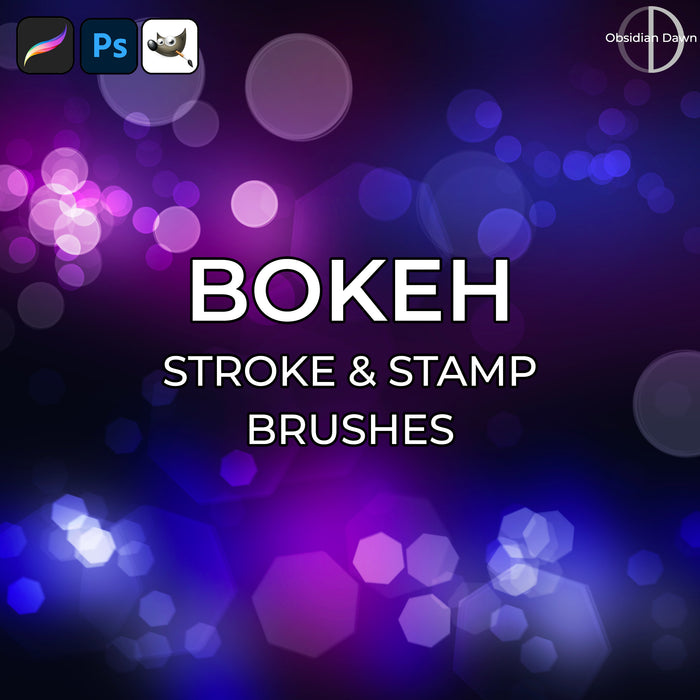
This comes from several requests that I’ve gotten in the last few months. Some of you will know what bokeh is, and some may not. But ALL of you have seen it at one point or another, as long as you look at photographs or watch movies. Check out the preview image below for a visual example.
Bokeh is a Japanese term used in photography. It is used to describe the qualities of the area of a photo that is out of focus, and is used to help draw your eye to the subject of the photograph. Some pretty cool things happen with bokeh, too, and that’s what these brushes will help you to create.
This set of Photoshop & GIMP brushes is composed of various bokeh designs. It comes with several brushes for painting your own bokeh, as well as some that are already put together into scattered groups like the ones you see in my preview image. Some are circles, some are polygons, some are more blurry than others. They are all high resolution, with an average size of about 2000 pixels.
Be sure to check out our Creating Faux Bokeh Backgrounds in Photoshop Tutorial.

Programs: Photoshop 7+, Photoshop Elements 2+, Gimp 2.2.6+
Brushes: 28
Size: 10.6MB
Download the image pack (for those without Photoshop & GIMP)


Pingback: And the sea was full of golden Bokeh!
Pingback: Screw-on filters or rectangular filter system?
Pingback: Adding Bokeh?
i have got a question: is it free?
lurk moar
(anno is everywhere)
@Opal learn to spell and not regurgitate lame internet 4chan fagisms.
Pingback: Faking DOF
i love these brushes
hii,
Thanks, I got it! , it’s new to me .
how do brushes transparent in gimp ?
grtz Janine
I assume you’ll just turn down the opacity on the brush like in Photoshop. However, I’m not a GIMP user, so I’m not sure how, sorry!
Thxs very much for this cool Stuff !
nice stuff, thx a lot!
nice brushes. thanks for this cool stuff
Thank you for these wonderful bokeh brushes that I will use in layouts for my daughter in marriage. She is Japanese, and I’m trying to respect her heritage within my layouts that will also include my youngest set of grandchildren.
how do you download it? i feel stupid but i don’t see a download button…
It’s not a button (though it will be soon!). It’s text that says “Download the brushes”.
it’s very cool,thanks
Many thanks for this buddy! Nice work.
Thank you for these brushes! Been looking for some brokeh brushes for awhile .
Really, really cool! Thanks so much!
HOW DOES IT GET INTO THE BRUSHES IN THE GIMP PROGRAM?? NOT WORKING WITH ME!!
Did you click my button just next to the download button that says “How to Install?” and follow those instructions?
Wht this brushes not working with Gimp 2.6???????pls help
Truthfully, I’m not sure if they work 100% correctly with GIMP. These brushes are made to scatter around, and I don’t even know if GIMP has that capability.
You can still download the image pack and get the basic images to make into brushes, though. I just don’t know if you can get them to scatter like they should.
Pingback: Doe a Deer « comeoutbooradley
Wondering how to get these on Gimp? When it opens the file, it has where you click to download that and it takes me to Adobe Reader to see a message that tells me it is not a supported file type or has been damaged. Can someone help please?
If you click on the “How to Install?” button just next to the download button, it explains it all. You don’t just click on the file once you download it to use it – you have to put it in the right directory, then it’ll just show up with your other brushes.
Can your brushes be download and used in pixelmator?
I have no idea, I don’t know anything about pixelmator. However, the image pack should work in any program that you can make brushes. As long as it uses the same “system” for knowing how to make brushes as Photoshop … white = transparent, black = opaque. So you could give it a try!
Just realized what set you’re asking about. It won’t be able to do the random scattering effect if you just use the image pack. But if they have a scattering effect, you could add it afterward.