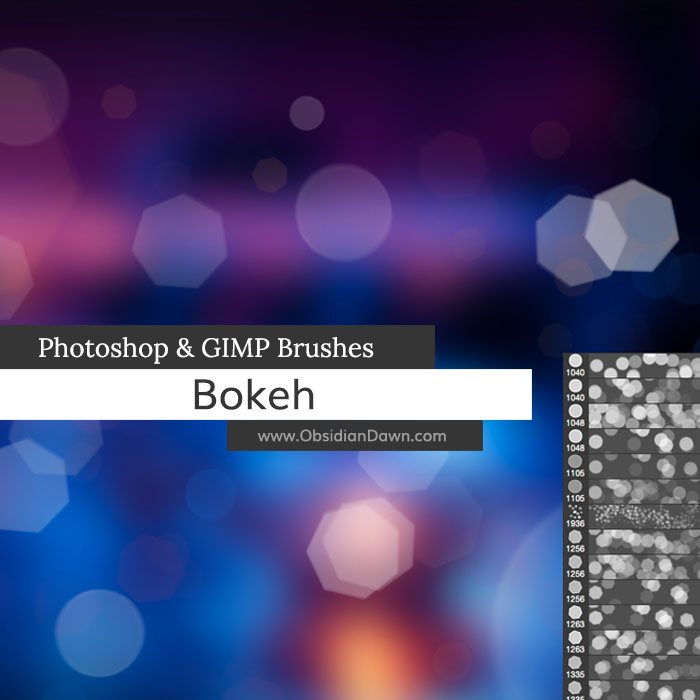
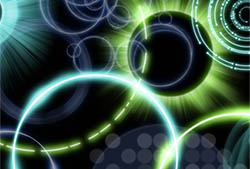
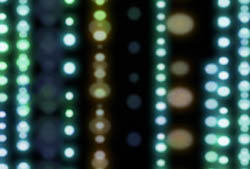
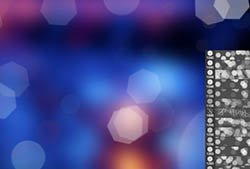
This comes from several requests that I’ve gotten in the last few months. Some of you will know what bokeh is, and some may not. But ALL of you have seen it at one point or another, as long as you look at photographs or watch movies. Check out the preview image below for a visual example.
Bokeh is a Japanese term used in photography. It is used to describe the qualities of the area of a photo that is out of focus, and is used to help draw your eye to the subject of the photograph. Some pretty cool things happen with bokeh, too, and that’s what these brushes will help you to create.
This set of Photoshop & GIMP brushes is composed of various bokeh designs. It comes with several brushes for painting your own bokeh, as well as some that are already put together into scattered groups like the ones you see in my preview image. Some are circles, some are polygons, some are more blurry than others. They are all high resolution, with an average size of about 2000 pixels.
Be sure to check out our Creating Faux Bokeh Backgrounds in Photoshop Tutorial.

Programs: Photoshop 7+, Photoshop Elements 2+, Gimp 2.2.6+
Brushes: 28
Size: 10.6MB
Download the image pack (for those without Photoshop & GIMP)


Your Brushes are really fantastic. I will be using them in a Photoshop tutorial which will link back to you. Thank ou for the Brushes. It saves a lot of time. Pradip Chowdhury
what are the colours you used in the example picture? if you could reply with the code that would be great. (:
i downloaded this pack and it said there were 28 brushes. so far i’ve only seen two and everytime i switch brushes and return to choose the bokeh brush it isn’t there :(
i use a mac and photoshop elements 8. do you have any idea what’s going on? and also, is there a specific category that i should find these brushes in? the two bokeh brushes i see can only be found in the assorted brushes category.
@radii: These will be under their own name. It sounds like the brushes you’re looking at are the wrong ones. Check my “Installing Brushes” tutorial (in my sidebar), to help figure out how to load them and whatnot. That should help. Let me know if you have any more trouble!
ahhh i did it :D
i just got all excited to try them out. thanks for all these great things and for the help!
Thank you very much: )
Even if my lens can create bokeh,as you know,its not always possible to take photos handheld and create bokehs!
i love this site …
:D
You are awesome! THANKS!
Pingback: When Bokeh Meets Web Design: Stylishly Out Of Focus Backgrounds
Pingback: TG Designer » When Bokeh Meets Web Design: Stylishly Out Of Focus Backgrounds
I liked this thank you for sharing with us
Pingback: Brush : About Light | idiotrepublic.com
I can’t find your rules for use anywhere? Are they in the ZIP package?
@Phuphoung: They are. And they’re also in my sidebar, under “Terms of Use” :)
Hey thanks for these brushes, they are so great! :) but i have a question..do you know how to make the bokeh brighter and a bit blurrier (so it looks like there are bright twinkle lights behind the subject) around the edges? thank you!! ^_^
@olivia: Well, to make them brighter you could just double click with your mouse when using the brush instead of single clicking. Or, duplicate the layer a few times afterwards.
To blur them up a bit more, you’ll want to use a gaussian blur (filters > blur > gaussian blur) and adjust the slider to be as blurry as you want them to be.
Hope this helps!
Very cool. I was just reading the 123RF blog on bokeh and thought “why create the brush, someone’s probably already done it.” Sure enough…
Thank you for this valuable resource!
Ansel
what a stumble! thanks so much @obsidiandawn! just what’s needed to make my newsletter pop! dankie!
Pingback: » Blog Archive » I LOVE BOKEH
Loks very interesting, thank you
thanks so much!
Thanks so much for the brushes! They are awesome!
Pingback: Creating Faux Bokeh Backgrounds In Photoshop
Pingback: Bokeh - DigiShopTalk Forums
Wow, I love these brushes. I’m going to use them right away! They’re perfect. Thanks!
~Dianne