
Oct 23 2007

Butterflies -n- Trails Photoshop & GIMP Brushes

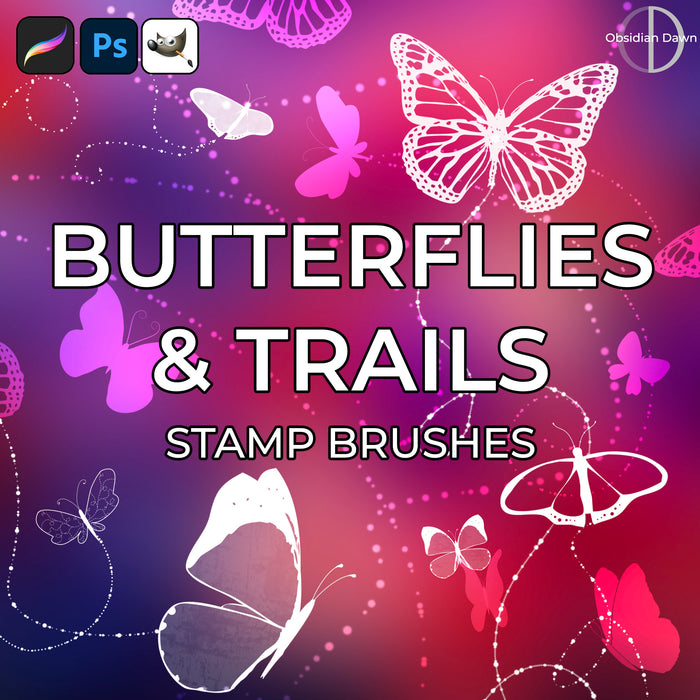
A set of Photoshop & GIMP brushes composed of various butterflies and swirly dots to make up their flight trails. Most of them are vector shapes. Includes 17 butterfly shapes and 9 of the swirly trails. These average around 1000 pixels high/wide.

Butterflies -n- Trails Brushes

Programs: Photoshop 7+, Photoshop Elements 2+, Gimp 2.2.6+
Brushes: 26
Size: 1.67MB


>> Download the brushes
>> Download the image pack

Please read my terms of use before downloading!

Random Photoshop Brushes Tip: Ever wonder how people make a brush “fade out” as the stroke continues? Almost like real paint would? Here’s a quick tip on how to do just that.

Select a basic, round brush with your brush preset picker. About 15 pixels or so would be a good size. Now, click on the “Brushes” tab on the upper right of your Photoshop working space (or hit F5).

Click on “Shape Dynamics.” Make sure that Size Jitter, Minimum Diameter, Angle Jitter, and Roundness Jitter are all at 0%. The controls after Angle Jitter and Roundness Jitter should also say “Off.”

Now, next to the Control under “Size Jitter”, click the small arrow on the right and select “Fade.”

In that small box to the right of it, put in a number. Say 50 or 100. Depending on how long your line is. This value is how many pixels out you want the line to go for before it fades out completely.

Now take that brush and paint on your canvas! You’ll see it “fade out” as it goes on. What it’s technically doing is become smaller and smaller until the brush size is 0px.

You can also make it actually fade out. Instead of (or in addition to) clicking on “Shape Dynamics,” click on “Other Dynamics” under the Brush tab menu.

Set everything to 0% and “off” as before. Under the Opacity Jitter slider, change the “Control” on that to “Fade.” Then in the small box to the right of it, put in a value like you did before. 50 or 100 pixels, something like that. This works the same way, but it will actually fade out instead of just getting smaller.

They each have their different uses, and also work great together!

15 Responses to “Butterflies -n- Trails Photoshop & GIMP Brushes”

  1. Varunsivaraj

    I like this brushes very very much thanx sir……………..

  2. khreastine

    lurve it! ^__^ nice nice

  3. absolutely WONDERFUL!! Thank you so much for sharing!! :D

  4. beulahmom

    Thank you for sharing!

  5. Bob

    Thanks for the tip!

  6. Juliana

    is that free?

  7. @Juliana: It is free to use, but you must follow my terms of use: http://www.obsidiandawn.com/terms-of-use

  8. lei

    really pretty! thanks so much for sharing :) i wish i can do something like these too.

  9. JoyceB

    Another treat…and thank you for the tip!

  10. AWESOME images and brushes! Thank you so much for sharing them and the tut too! :) Have a GREAT day!!

  11. Miru

    Thanks for sharing the brushes <3 They’re so prettyyyyy~~~

  12. Akane Yokutsu

    How do you make it so you can use it on GIMP?

  13. @Akane: They should work with GIMP as-is. You need to unzip them, of course, and here’s a tutorial that explains the installation (look at the bottom for GIMP): http://www.obsidiandawn.com/installing-photoshop-brushes-gimp-tutorial (It’s also in my sidebar)

  14. Xyla nicole

    wow your brushes are really famous throughout google search and Deviant art
    I really love your brushes
    they really deserve to be famous !!1

    I love your website
    thank you for letting other artists like me continue with their beautiful works using your brushes
    you are really amazing !!!

Leave a Reply

Member Center

By Program

Follow Us

  • Fb   Fr   Te   Tw   BC
See Your Image here - Submit Now!