
Jun 17 2008

Celtic Knotwork Vectors Photoshop & GIMP Brushes

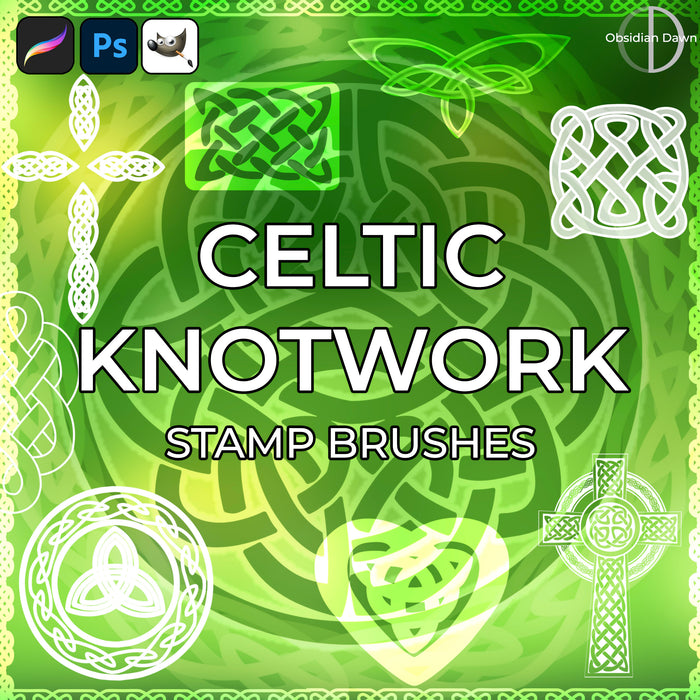
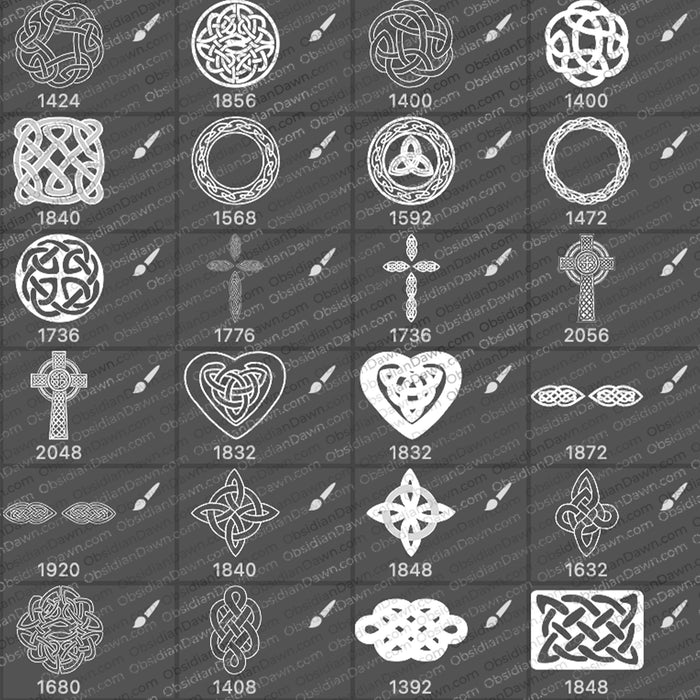
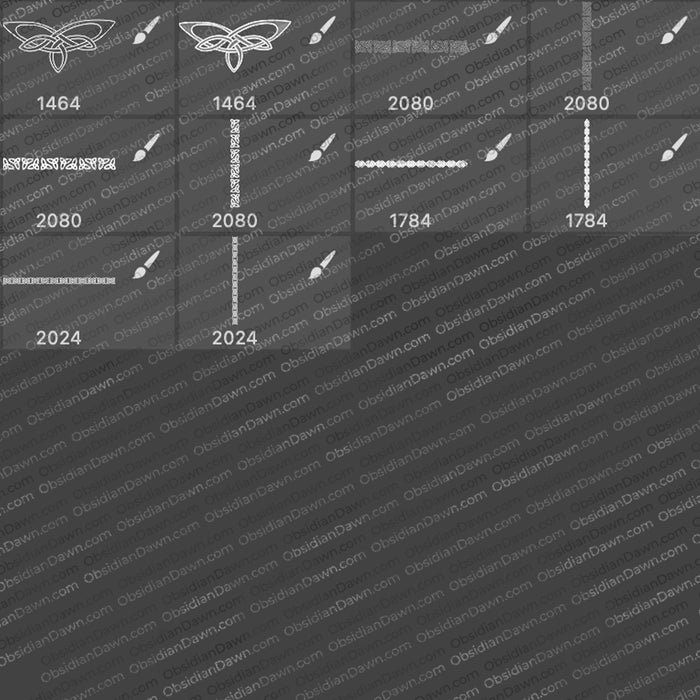
A set of Photoshop & GIMP brushes composed of various celtic knotwork designs, all as vector images. Includes all shapes of knotwork, from circles to squares, as well as a few celtic crosses. Also includes 4 different borders. All high resolution, average size about 1900 pixels.

Celtic Knotwork Vector Brushes

Programs: Photoshop 7+, Photoshop Elements 2+, Gimp 2.2.6+
Brushes: 35
Size: 8.54MB


>> Download the brushes
>> Download the image pack

Please read my terms of use before downloading!

Random Photoshop Tip:

The transform selection tool is your friend. Ever had trouble getting your selection JUST right, and had to start back over again from scratch? Well, you don’t have to!

To see what I mean, try to perfectly select around a box in an image. Unless you’re really careful, you may not get it just right the first time. So choose Select > Transform Selection from the menu, and you can now expand or contract that selection to your heart’s content. You can even zoom in so that you can get it JUST right before choosing Select > Transform Selection and do it that way.

And that doesn’t just apply to boxes. You can go from a free transform (which is how it starts out) into any other kind of transform that you want by choosing Edit > Transform > *****. That even includes distort and warp!

It’s hard to explain the all of the kinds of situations where this may be useful, but I’ve found it very useful numerous times. So keep it in mind for that day that you too may need it!

15 Responses to “Celtic Knotwork Vectors Photoshop & GIMP Brushes”

  1. These are utterly fabulous. Thanks for the great photoshop tip, as well.

    Blessings~

  2. sam

    you are the Best.

  3. Thanks again for these awesome Celtic brushes.

    Slanche’

    AJ

  4. Awesome. This is very generous of you.

  5. wightmagik

    Thanks for these, beautiful, they enhance photography.

  6. Lientsu

    thank you very much! they are so beatyfull!!!

  7. pos

    why cant i get these?

  8. @pos: I’m not sure! The download just worked fine for me – perhaps it was a temporary issue? Let me know if you still can’t get them! (You should be clicking on “DOWNLOAD THE BRUSHES”)

  9. pos

    well, when i tried the first time, i did try suing the imagepack lol…. but even now, when tring with the “DOWNLOAD THE BRUSHES,” all I get in the WinRAR are 3 folders; the folder that is always there and says “…” one the says “obsidian-dawn-tou.txt” and another that shows a little windows flag icon, and says “SS-celtic-vectors.abr” the .abr file, when i click on it, give me a messege that says “Windows cannot open this file….etc etc”
    And when i try to simply extract it to the “brushes” folder in GIMP, it moves, and then doesnt do anything.

  10. pos

    …in fact it does this with every brush set that ive tried…..

  11. @pos: Okay, then you need to follow the link in my sidebar that says “Installing Brushes”. You do NOT simply click on the file to open it, that’s not how you install brushes. That would be the problem. :)

    That tutorial should get you squared away, though!

  12. pos

    =\ hmm i tried what it said (i am using GIMP) but it didnt work…. kinda a shame, cus they look like awsome brushes….

  13. @pos: If you have GIMP 2.2.6 or newer, then these will most definitely work. It may be a question of surfing around the internet figuring out some of the little tricks to get Photoshop brushes to work in GIMP, but they most definitely work! I have a tutorial in my sidebar “Installing Brushes” that’ll get you started – also you could check the comments on that page where people have given tips, or if that doesn’t work Google it and you’ll find what you’re looking for. I’m not a GIMP user, so I can only help so much sorry!

  14. Thank You, I’m very excited to use these

  15. donghongguang

    Hey! Hello, I am very happy today to introduce this site to my friends, which allow very rich class, let me play inspired! Thank you

Leave a Reply

See Your Image here - Submit Now!
Obsidian Dawn on Facebook