
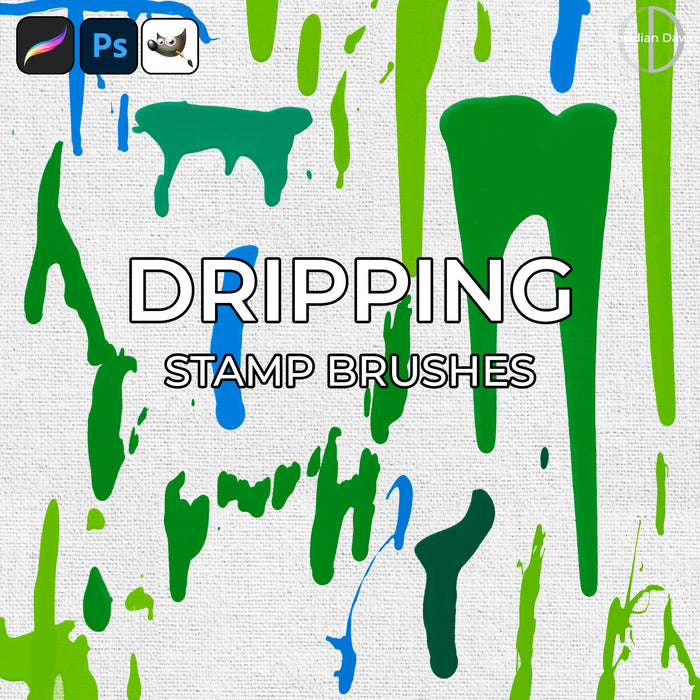
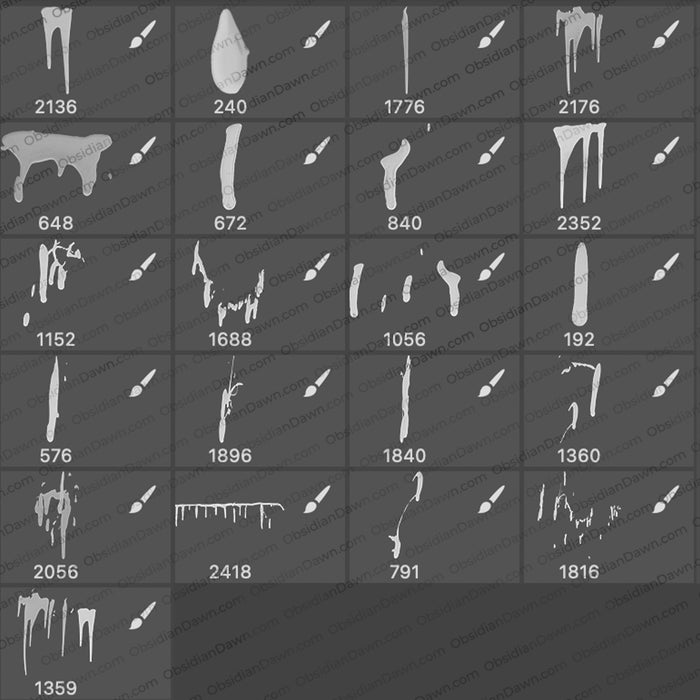
A set of Photoshop & GIMP brushes composed of various dripping liquid shapes. These are high resolution and come in a variety of shapes and sizes, all the way up to 2500 pixels in some cases. They should work well for dripping blood, paint, or just about any other kind of non-clear liquid that you can think of that might drip! These are made from photos of actual dripping paint.

Programs: Photoshop 7+, Photoshop Elements 2+, Gimp 2.2.6+
Brushes: 21
Size: 3.88MB
Download the brushes
Download the image pack
Please read my terms of use before downloading!
Random Brush Tip: (I’ll include these every so often, when they come to mind! Just some of my more frequently asked questions about brushes that are too short to write a tutorial about)
If you want to rotate a brush, there are two ways to do it.
1. You can put it on its own layer, and then choose Edit > Transform > Rotate and move it around that way.
2. Even BETTER… you can change the orientation/rotation of a brush before you even use it! Here’s how.
Have your brush tool selected, with the brush you’re wanting to use loaded. Click on the “Brushes” tab in the upper right area of your Photoshop window (F5 will also open it). Click on “Brush Tip Shape.”
Now, you’ll see an area where there’s a circle with a crosshair through it, with an arrow on one side of the crosshair. Say that you want to rotate your brush about 40 degrees to the right. You can either type in “-40″ into the “Angle” area, or you can click on the arrow part of that crosshair and rotate it around to where you want it to be. You can check how your brush looks in the preview area beneath!
There’s also the options for Flip X and Y, which… well, basically flip the brush horizontally or vertically. That’s handy for adding borders to something, like if you have a corner brush that’s made for the upper right corner and you want to also use it in the upper left… just Flip X, and voila!
Hope this helps!


5 Responses to “Dripping Photoshop & GIMP Brushes”
This is a really good brush set. There are very few stray marks. Good work on this. :) ~ZeroGrafics
super rad. It’s funny that I’ve been dying to know how to easily rotate a brush, but always forget to search when i’m online. and now i’ve found the answer without even looking for it.
double thanks
thanks a lot for this man really love it. i really need this and i can never thank you enough.
hey i have been looking around, and i can’t find the turturiol on how to download these brushes, cause the other site i went to told me to un hide hidden files so i can use my brushes and i keep loading them in the brush place but when i go on my brushes on adobe photoshop elements 7.0 it says there are non in my file, i need help ????
@brianna: I have a tutorial that explains how to install them right in my sidebar, under “Getting Started”. It says “Installing Brushes”
Hope this helps!
Leave a Reply
Other Links
Member Center
Getting Started
Affiliates
Helpful Links
Follow Us
By Program
Latest Downloads
Popular Now
Web Design and All Content
© 2004-2009 Obsidian Dawn