
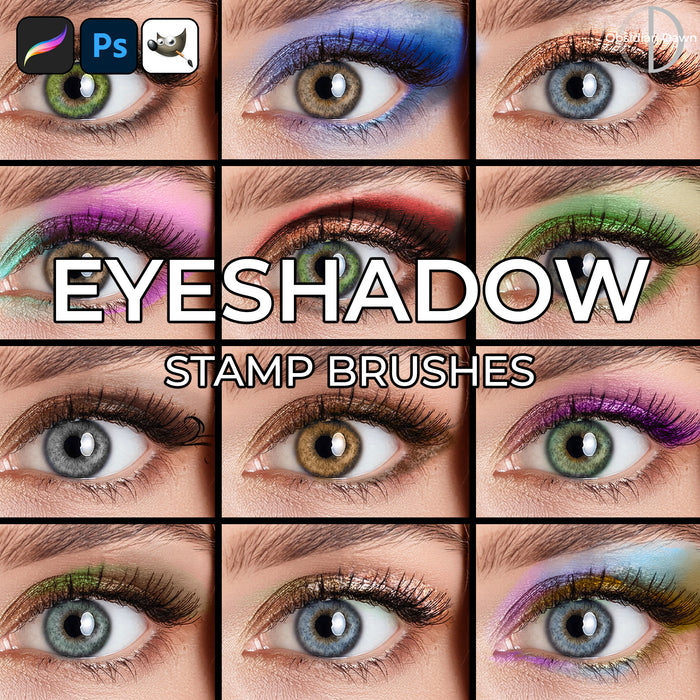
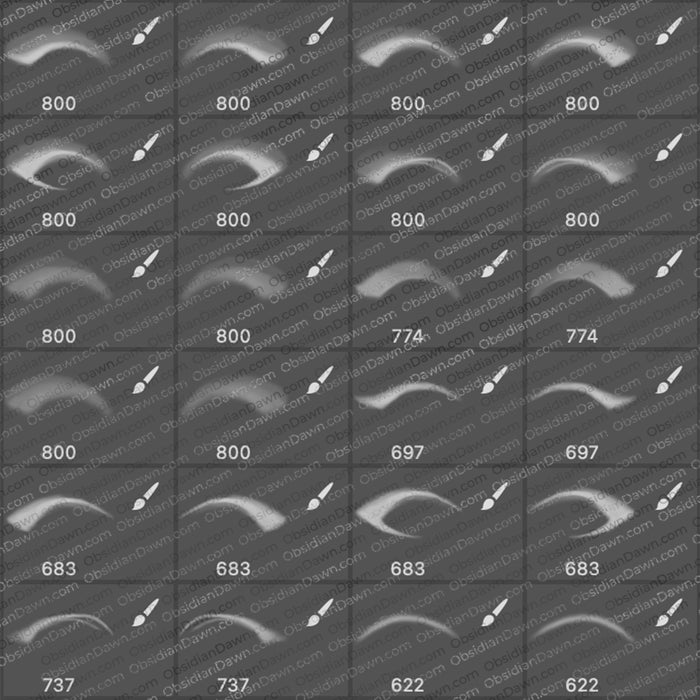
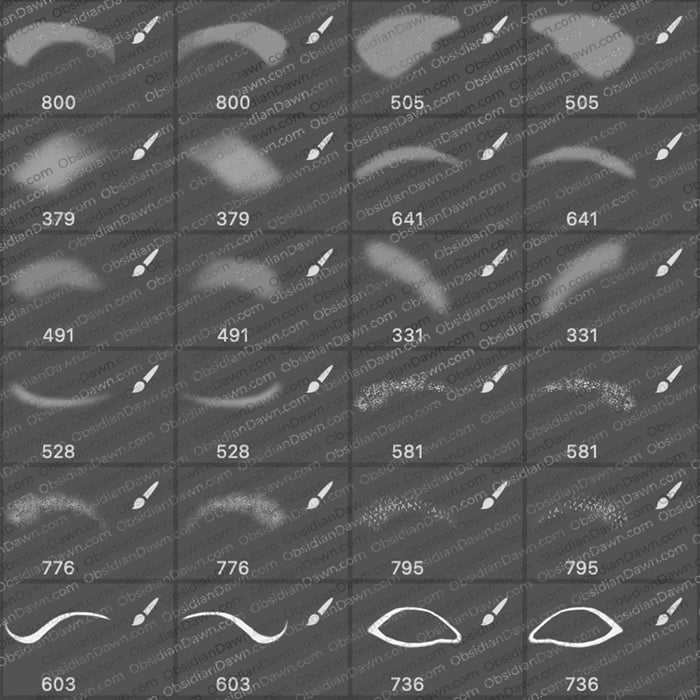
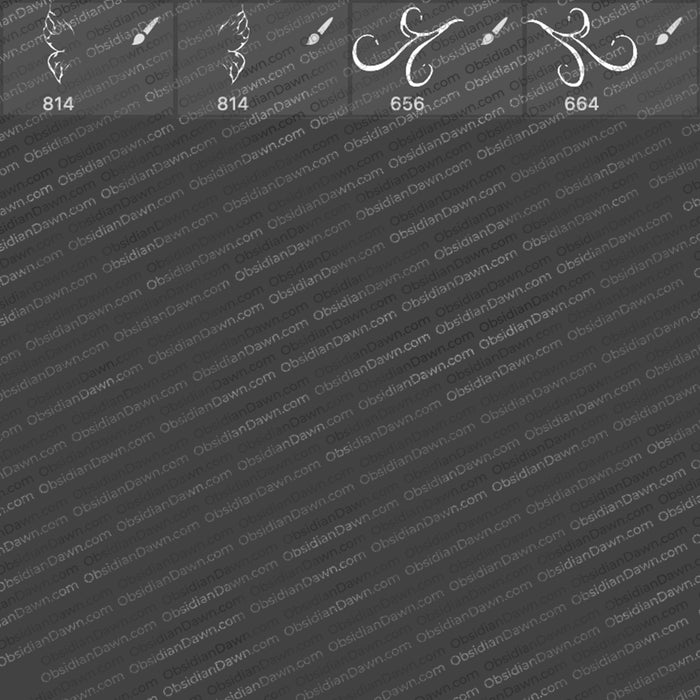
A set of Photoshop & GIMP brushes composed of various shapes of eyeshadow. It includes just most of the traditional eye shadow shapes, either broken up into individual brushes or all together. It also includes various glittery effects, patterned eye makeup, and face painting styled eye accents (a butterfly and a swirl). It should make your Photoshop makeup applications much easier and more fun! Brushes are included for both the right and left eyes.
It should make your Photoshop makeup applications much easier and more fun, without having to resort to the plain old one-color-without-much-shape shadow job.
Brushes are included for both the right and left eyes (so it’s actually 26 unique brushes), for your convenience.
These are tons of fun to play with, so enjoy!

Also shown in the preview picture are our Eyelashes Photoshop & GIMP Brushes.
Programs: Photoshop 7+, Photoshop Elements 2+, Gimp 2.2.6+
Brushes: 52
Size: 2.73MB
Download the brushes
Download the image pack
Please read my terms of use before downloading!
Brush Tip: With this set, I would suggest putting each of the eyeshadow “parts” on its own layer. Then, you can play around with the colors individually. Also, you’ll be able to choose various layer blending styles. You’ll find that the layer styles can make a vast difference on how realistic these look!
To change the layer blending style, look at the top area of your layers palette. There will be a dropdown menu on the left side – it will start out saying “Normal”. Click on the arrow next to that and select the various kinds of blending styles from the dropdown menu.
Using the right kind of blending style can help ensure that the shadow doesn’t look like it’s somehow “on top” of the person’s lashes. My suggestions to check out, in particular: multiply, screen, overlay, hard/soft light, color, and hue.
Hope this helps!


54 Responses to “Eyeshadow Photoshop & GIMP Brushes”
amazing brushes.
im going to put a link up on my page.=]
wait…..does it mean if we open our own solo picture and brush it w/ this brush in our eyes we’ll have eye shadows?
Marie: That’s exactly correct. You may have to reshape the brush to fit around the eye perfectly, but yep. That’s what they’re made for!
Help how do i actuly put the brushes oN THE POGRAM
@Salwa: when you open the brushscreen there’s a arrow next to it: click on it, and then load brushes. Select your brush and than you have your brush;)
@Salwa: What Ellen said! And here’s a full tutorial, in case you need more: http://www.obsidiandawn.com/installing-photoshop-brushes-tutorial
It’s in the sidebar, for future reference. :)
Thanks, Ellen!
Dear Stephanie,
I managed to upload one of your fabulous brush sets..and then I made a terrible mistake, I clicked properties on one of my dowloaded brush sets and changed it to open with photoshop and all of them changed! What is it MEANT to say on th efile of opens with?
Thanks :)
x
@Emma: They should say Photoshop, so you didn’t mess anything up! But you don’t just click on the file to open it and use the brushes – check out my tutorial on installing them here: http://www.obsidiandawn.com/installing-photoshop-brushes-tutorial
Also, you may want to make sure it’s the unzipped file that you changed the properties to open with Photoshop, and not the SS-*.zip file. Zip files shouldn’t open with Photoshop – it should open with Windows Explorer (or, that’s what my Vista says for properties of zip files).
Good luck!
Hey Stephanie,
Just wanted to say your website is amazing, especially how you have made it so accessible for people to use:) I’m a beginer using Photoshop so I’m just getting used to the features but i did have a problem though i hope you could help me with. The brushes are fantastic and they have uploaded with no problem, but when i have tried to put the lashes on, they dont seem to fit the eye properly. Is there any way I can re-adjust it? The only thing i have managed to do is change the size of it on the bush “Master Diameter” scale, but the angles are still not fitting perfectly. If you have any tips that would be great, thanks:)
Thank you again for the great brushes:)
@Stephanie: Your best bet is to use the brush on its own layer, then use the Edit > Transform tool to adjust them to the shape of the eye. You can use the Warp Transform to get the “roundness” of the lashes just right. Hope this helps!
Hi, I just downloaded your bruses and I love them, they are so cool. But I want to know how do I resize or rotate the brushes to fit my eyes in a certain picture.
Blaze2001 go to “edit” and down to “transform” then theres a list of options. Click “Scale” or “Rotate” depending on what you want. The image has to be unlocked to edit it with these. double click on the background layer and then click “ok” to unlock it.
goodluck
@Blaze2001: Put them on their own layer, and then use Edit > Transform to make them fit the shape of the eye. You could do resize, rotate, or even warp if you need to change the curvature. Enjoy!
Oops, didn’t see that J had already answered it. Thanks, J! Just thought I’d leave it, to explain the use of warp, too. :)
i uploaded the eyelashes and lips succesfully and can use them as brushes. but when i try to upload any other packs they come as images and not as .pspbrushes i also cannot change the format of the type of file so i cannot use any other packs as brushes. only images :( PLEASE HELP
@Jade: Well, these brushes weren’t made for PSP. I’m not sure why the eyelashes and lips would work for you and others wouldn’t… NONE of them should be working in PSP.
However, you’ll notice that on each page, there’s a download for the brushes, and then a download for the image pack. The image pack may have been what you were grabbing on all the other sets, perhaps? Make sure you’re downloading the brushes!
If the brushes aren’t working, then that’s what the image packs are for. They are just JPGs, and you can then use them to make brushes in whatever program you’re using… so you could use them that way in PSP, if not any other way.
Good luck!
Great brushes.. I have a question though.. I downloaded them.. But I dont know how to turn them into brushes.. I have Gimp2. Do I need to do each one individually is there away to make them all brushes instantly and if so how. Thank you so much.
Cm-
@Catelin: Gimp 2? Is there a Gimp 2, or do you mean version 2? These will work in Gimp version 2.2.6 and above. So if you only have 2.0, just upgrade your version of GIMP and they’ll work perfectly! I also have directions for installing brushes in my sidebar, and that includes for GIMP users. :)
Good luck!
what a fantastic set. in fact its all stunning. im in awe and jealous of your skils!
thanks so much
great brushes…..thanks
omg. that’s awesome. I’ve been searching dis for ages. cant believe it really does exists..ha ha…because normally i do my own and wasn’t that great enough. and thanks a lot for the ALL BRUSHES that u created. Every time i edit my pictures or my friends picture…i always put credit of dis website on my pictures. :))
i love you obsidian dawn!!!!!!!
I love all your people brushes, the eyelashes and the eyeshadow are my favorite…
I’ve been looking for Eyebrow brushes but there dosen’t seem to be many out there.
Please, please, please make some eyebrow brushes : )
Hi Stephanie!
Thank you so much for posting that kind of brushes. I love to work with extreme makeover and it helps a lot to save time, once you already know how to make that in free hand!!
(sorry my bad english… I’m a brazilian who tries to speak english… lol.. thank you again!!)
These are so cool! Thanks! I love all your brushes!
[...] meddlesome images brushes themselves, check picture container website here: [link] [...]
I tried to put the brushes on, it worked but, the next time i turned on photoshop, the brushes weren’t there anymore.
@Trishaa: If you save them into your Photoshop > Presets > Brushes folder, then they will always be there whenever you use Photoshop. If it didn’t save the current info when it closed (if it was closed improperly), then you may have to re-open them, but they’ll always be available from the list of brushes to choose from.
Hope this helps!
For all ya Gimpers, to install brushes, patterns, or other things, go to My Computer, C: Drive Program Files, Gimp-2.0, share, gimp, 2.0, and click on the folder that matches what you’re installing. Copy, move, or save your file there and refresh the brushes dialog by clicking on the little blue arrows at bottom. Some things can only be refresh by restarting Gimp.
Here is the path:
C:\Program Files (x86)\GIMP-2.0\share\gimp\2.0\brushes
This is a really neat set – thank you!
Thanks so much. It worked and now i don’t have to reload them all the time.
:D
Thanks so much. It worked and now i don’t have to reload them all the time.
:D
I dont know how to put them in the program iäve read the tutorial bu i cant find the place where ive put the program can someone just help me quick ? :|
@Kristina: As the tutorial says, the program SHOULD be in your Program Files > Photoshop > Presets > Brushes (in Windows) folder. Mac: Applications > Photoshop > Presets > Brushes
That’s where you want to put the ABR file. NOT the ZIP file, which needs to be “unzipped” first.
Then restart Photoshop, and it’ll be with your other brushes. That’s it!
thank you soo much for these brushes…they’re just what i’v been looking for!
Woww..really nice. Thanks! :)
BIG THANK for all these GREATE brushes
Woho now I have both eyeshadow and eyelashe :)
Thankyou :)
Ment to wright eyelashes at that last one :P
Um my document comes out empty, am i doing something wrong?
@Caro: What do you mean, your document? When you go to try to use the brushes? Or the ZIP file? If it’s the zip file, it may just be a bad/corrupted download, in which case you just need to download it again.
In any case, check out my tutorial on how to install and use the brushes in my sidebar, that should help!
Hey Stephanie! I love all of your brushes, when I unzip them, they won’t show up at GIMP. What shall I do then? I have try to unzip it like 10 times? I saw you brushes, and it was beautiful! I really want to use it. Please help me.
- Sara.
@Sara: Well, I’m not a GIMP user at all, so what I’ve done is did a search through the comments on my “Installing Brushes” tutorial for “GIMP” and found a few things that others have said that might be helpful for you:
“Make sure you restart GIMP or reload the brushes!”
Another says:
“Eureka…. after loading the brushes, double click on the eyelash brush of choice which will bring up the brush editor. Click on the arrow to the far right which will bring up the brush editor, click on Add Tab and then on Tool Options.”
Another one says:
“After you have unziped the file, go into the file, double click on the file then do this Just use
Edit -> Copy
to copy the current layer, and then
Edit -> Paste as -> New Brush
This Should help you, it may take longer but I garenty you you will get all your brushes, I hope this helped you all” (I personally don’t think this is absolutely needed… from what I understand, these brushes ARE usable in GIMP without any adjustments. But, this is a possible workaround.)
And another:
“Quick note to Microsoft Vista and Gimp users: I could not get the brushes to show up at first… you’ll have to “right-click” over Gimp and click “Run as Admin” to get the brushes to appear after install. If you fail to see the brushes after following the posted instructions, I would recommend trying this before trying to re-download.”
Hope these help!
Hi! I just wanted to thank you for these brushes… I’m looking to try my hand at creating a poser character, and I spent hours last night painting one set of eyeshadow, that frankly, I don’t care for! lol… I think these may be just the thing to save my sanity! :) So, thank you!!! If I do manage to get it to work, I’ll be sure to credit you!
ive downloaded it no problem, opened photostop.. but they arent there in the brushes bit :(
please help. x
[...] Eyeshadow Photoshop Brushes [...]
Ive dowloaded the brushes..but it asks what program i would like the brushes to be opened with. Amongst the list i cant find Photoshop/preset….not sure!!??
@fizz: You’re not supposed to just click on the file once you download it. Check my sidebar for the “Installing Brushes” link – that’ll get you started! :)
every time i try to download it it always just doesnt let me unzip by going to adobe and i am stumped on what i could possibly do?????help…..
@Jennifer: You don’t unzip it with Adobe. You unzip it with an extraction program, which comes standard on almost all computers now-a-days or you can download any number of them for free. Check my sidebar, where it says “Unzipping the File” and that’ll get you going. Better yet, check out “Installing the Brushes”, which explains it all. :)
How do i reshape them?
Terry
@Terry: Try here: http://www.obsidiandawn.com/eyelashes-photoshop-gimp-brushes
That’ll explain how to rotate and reshape the eylashes, and applies to the eyeshadow as well. :)
Hey, I really really like your brushes! But how can I change the colors? like they are all black…so how can I change the color to like…green?
@Lucas: Select green as your color first, then click to use the brush. If it’s not letting you select green, then you’re not in RGB mode. Switch the color mode, then you’ll be good to go! I think it’s under Edit > Change Color Mode or somesuch.
I love your brushes they are simply fantastic !!!! plus easy to upload and all :) .. Just one questions . Do you have any Wedding brushes and eye brow brushes ? would love to see some or if you know where i can find some in a zip file ofcourse i use photoshop 7 . Thank you and keep up the great work :)
@Lawcatt509: I’m afraid I have neither! They’re both on my “to do” list, though.
And I don’t keep up with other brush creators at all, to try to make sure I stay as original as possible – sorry that I couldn’t help more!
Leave a Reply
Other Links
Member Center
Getting Started
Affiliates
Helpful Links
Follow Us
By Program
Latest Downloads
Popular Now
Web Design and All Content
© 2004-2009 Obsidian Dawn