Jun 24 2008

Floral Photoshop Patterns
Category: Patterns | Tags: , , , ,

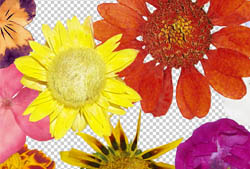
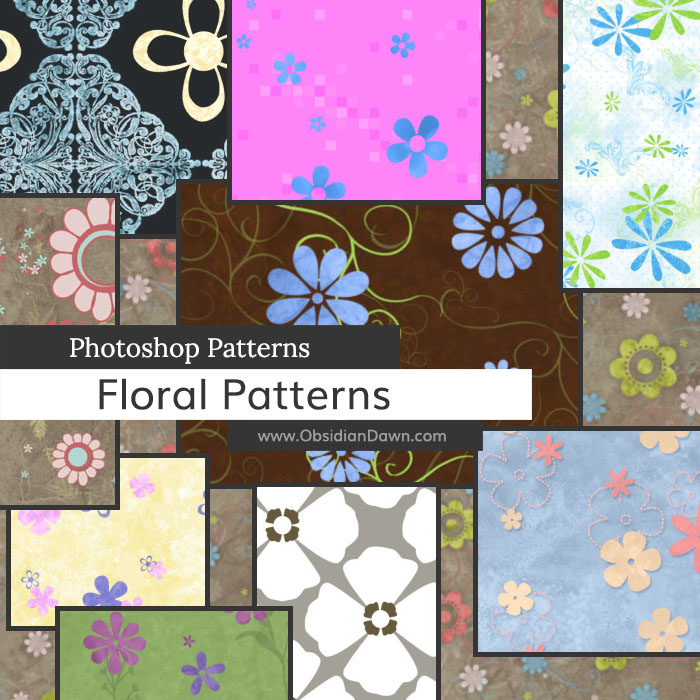
A set of Photoshop & GIMP patterns composed of various floral patterns. Some are just flowers, some have some swirls, others have some leaves and stems (foliage), etc. All are, of course, entirely seamless and are high resolution.

Floral Patterns

Programs: Photoshop 7+, Photoshop Elements 2+
Patterns: 23
Size: 6.15MB


>> Download the patterns
>> Download the image pack

Please read my terms of use before downloading!

Photoshop Tip:

If you like the pattern, but not the colors, here’s a quick tip to help you fix that!

  • Apply the pattern as a layer style and get it positioned how you want it.
  • Now, make a new layer beneath that one. Select the layer with the pattern on it again, and type CTRL-E (CMD-E on Mac) to merge the layers together.
  • If you are using Photoshop CS or greater (and some of the newer Elements have it, as well, but not sure which version it was introduced in), then:
    • Choose Image > Adjustments > Replace Color (in Elements, it’s Enhance > Adjust Color > Replace Color).
    • A window will pop up, and your cursor will turn into an eyedropper. Use that eyedropper to select the color that you want to change.
    • Slide the “Fuzziness” slider to the right or left until it selects just the right amount of the color that you want to change (the white stuff in the preview image is what is “selected” to change, the black will not). Moving the slider to the right means it will pick up more colors similar to the one you selected. Moving the slider to the left means it will pick up less colors.
    • Once you have your selection, move the Hue, Saturation, and Lightness sliders to get the color exactly how you’d like it. (Note: you can still change the “Fuzziness” slider while you’re doing this step, if you can see that it didn’t turn out quite right.)
    • That’s it!
  • If you’re using an older version of Photoshop or something that doesn’t have “Replace Color” as an option, you can still do this:
    • Choose Select > Color Range.
    • A window will pop up, and your cursor will turn into an eyedropper. Use that eyedropper to select the color that you want to change.
    • Slide the “Fuzziness” slider to the right or left until it selects just the right amount of the color that you want to change (the white stuff in the preview image is what is “selected” to change, the black will not). Moving the slider to the right means it will pick up more colors similar to the one you selected. Moving the slider to the left means it will pick up less colors.
    • Click “Ok” – the stuff that you want to change should be selected.
    • Now choose Image > Adjustments > Hue/Saturation.
    • Move the Hue, Saturation, and Lightness sliders to get the color exactly how you’d like it.
    • That’s it!

12 Responses to “Floral Photoshop Patterns”

  1. Susanna

    Thank you so much for all that you share, and for the high quality of work that you offer.

  2. Catherine

    I love your work! Although I tried loading the patterns into Gimp, but it would not recognize the file type. Do you have any suggestions?

  3. @Catherine: Do you have a GIMP version that’s more recent than 2.2.6? They won’t work in any versions prior to that one. Oh, patterns… I’m not sure that the patterns work in GIMP, just the brushes. Sorry! I’m not sure that GIMP has allowed functionality of PAT files yet.

  4. Claire

    How can I blend photos with these patterns? Sorry if it’s a silly question but I’m new to Photoshop.

  5. @Claire: Hmm. I’d be happy to answer your question, but I’m not sure I understand what you mean by “blending photos.” I have a tutorial that explains how to install and use PS Patterns, you can find a link in my sidebar under “Getting Started” or in my tutorials section. That may help you out!

    If it doesn’t, explain to me a bit more precisely what you’re trying to do and I”ll see if I can explain it!

    Good luck!

  6. Jamie

    Thank you :) I haven’t done this in Photoshop before, but I LOVE the floral patterns! Thank you so much!!! :) Now I just need to learn how to use them.

  7. Jessica

    I understand that GIMP can use Photoshop brushes, patterns, etc, since I have a ton of .abr brushes, however for some reason every time I install a .pat file, it’s telling me it’s an unknown extension of file 62388 or something like that.

    How do I install the patterns in GIMP [portable]?

  8. @Jessica: I’ve heard that PAT files for Photoshop are different than the PAT files in GIMP. Photoshop patterns don’t seem to be compatible with GIMP yet, I’m afraid! (At least, from what I was told… and it certainly seems that way in this situation, as well!)

    Sorry! You can still download the images that come with mine and make them into GIMP patterns. :)

  9. Kate

    Hi,

    Thank you! so to change multiple colour parts of the print design do you just keep duplicating the layers – how can you make each colour on its on layer?

    thank you

  10. GIMP USERS:
    I found a pretty simple solution. I don’t think Gimp recognizes .pat, so instead, all you should have to do is download the image pack, unzip it, and copy the images over to an open ‘patterns’ folder. I’m not sure if it works on anything before 2.4, but it should.

  11. lol

    thank you so much for your tutorials and patterns ! :D
    i look forward to more of your works ;)

Leave a Reply

See Your Image here - Submit Now!
Obsidian Dawn on Facebook