All of the files provided here at Obsidian Dawn are compressed, or “zipped.” This makes them much smaller, for an easier, faster download.
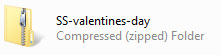
You’ll know a file is zipped when it has a .ZIP extension, or the image looks like a file folder with a zipper on it.
In fact, most files that you’ll find on the internet will be compressed in one form or another. So, it’s important for you to understand how to “unzip” or decompress them to get to the files inside.
Windows Users:
Double click on the file that you downloaded. When you double click on it, it will open in a window, much like a regular file folder would.
Next, look around that window for “Extract all files” or “Extract” – something like that. It will ask you where you want to extract them. Hit “Browse” and select a location. For now, place them someplace easy to find again – like your desktop.
If you have an older Windows computer, you may need to download a free version of WinZip, which works much like what I’ve outlined here. See their website or the product itself for further instructions.
Mac Users:
Macs now-a-days come with a decompression tool already installed. Chances are really good, in fact, that Safari has already “unzipped” your file when you download it into your Downloads folder.
If it’s no longer a Zip file, and–in most cases–looks like a file folder, then it’s already been “unzipped.”
If for some reason it is not, double clicking the file icon should do the trick.
That’s it! If you’re not sure where to place the files (Photoshop brushes, patterns, shapes, etc), refer to our tutorials in the right menu.