
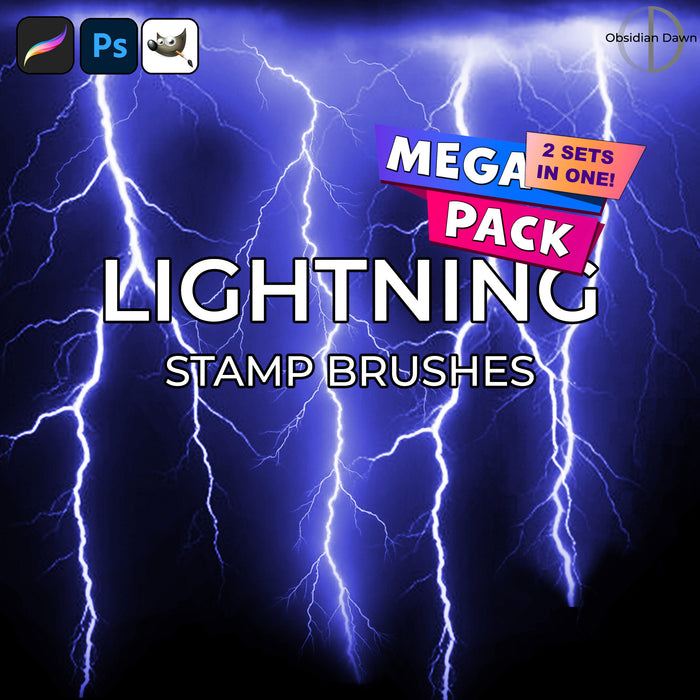
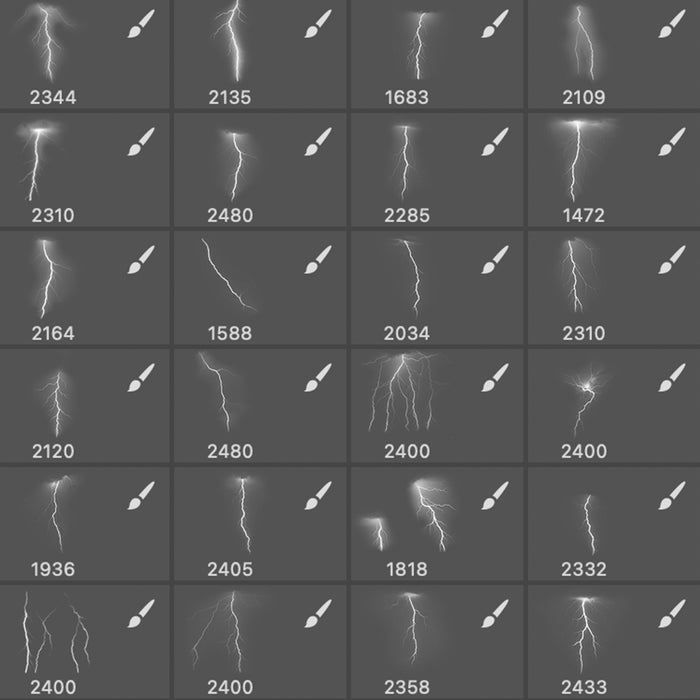
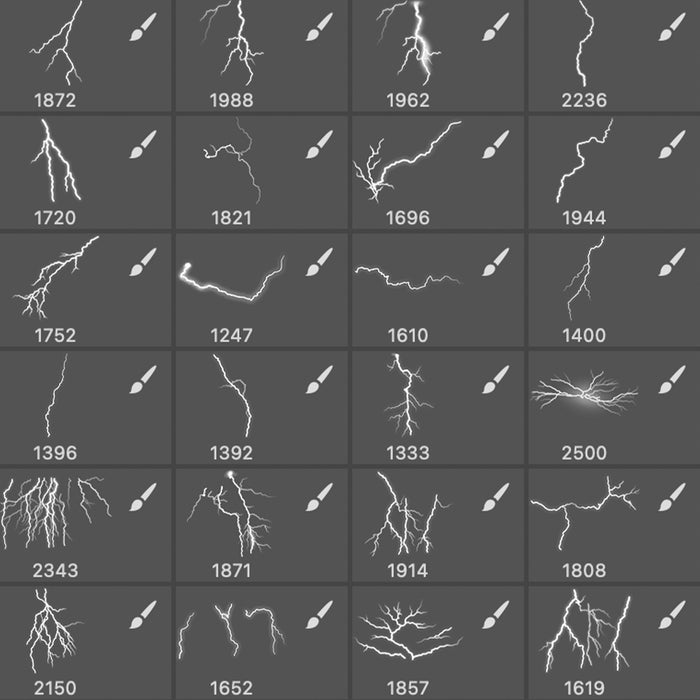
A set of Photoshop & GIMP brushes composed of various shapes of lightning bolts. All created from scratch, original designs. These are all extremely high resolution, with the average size being about 2200 pixels.
Includes single bolts, which you could use on their own OR put together to create your own forking bolts. Also includes groupings of bolts already put together.

Be sure to also check out our original Lightning Photoshop & GIMP Brushes set!
Programs: Photoshop 7+, Photoshop Elements 2+, Gimp 2.2.6+
Brushes: 26
Size: 10.2MB
Download the brushes
Download the image pack
Please read my terms of use before downloading!
Random Brush Tip:
Lightning works great for illustrating magic. And when you’re doing that, lightning comes from (and goes) in all directions. So, how do you rotate these?
Well, when you want to rotate a brush, there are two ways to do it.
1. You can put it on its own layer, and then choose Edit > Transform > Rotate and move it around that way.
2. Even BETTER… you can change the orientation/rotation of a brush before you even use it! Here’s how.
Have your brush tool selected, with the brush you’re wanting to use loaded. Click on the “Brushes” tab in the upper right area of your Photoshop window (F5 will also open it). Click on “Brush Tip Shape.”
Now, you’ll see an area where there’s a circle with a crosshair through it, with an arrow on one side of the crosshair. Say that you want to rotate your brush about 40 degrees to the right. You can either type in “-40″ into the “Angle” area, or you can click on the arrow part of that crosshair and rotate it around to where you want it to be. You can check how your brush looks in the preview area beneath!
There’s also the options for Flip X and Y, which… well, basically flip the brush horizontally or vertically. That’s handy for adding borders to something, like if you have a corner brush that’s made for the upper right corner and you want to also use it in the upper left… just Flip X, and voila!


13 Responses to “Lightning II Photoshop & GIMP Brushes”
HAI SUPER BRUSHESH THANKS
i downloaded the brushes but how do i get them to come up ?
:S
@3444555: Follow my tutorial on installing brushes – you can find a link in my sidebar on the right.
Thank you so much!!!
Nice brush… Thanks for sharing….
Thanks Stephanie, I got some of your brushes on the IFX dvd before & liked them – great selection here. A guy on cornucopia 3d used the brushes to create a background in ps & place it on alpha inside vue (a 3d app) & he refered me here. must try the technique with your other brushes particularly lightening II.
Nice work & great selection…
thanks…
Thanks Stephanie for this and all the brushes I’ve downloaded.
Your site looks great and certainly has grown.
Q
I have a quick question – does the random brush tip apply to all versions of Photoshop? I’m trying to rotate the lightning brushes a bit to the right using the F5 trick, but nothing shows up. (I use Photoshop Elements 6.0)
Amazing brushes, by the way! :3 Already have visions of future photomanipulations using these in my head. ^^;;
@Moneka: Not really, no. They’ll apply to all versions of Photoshop, but not necessarily Photoshop Elements. I’m afraid I don’t own a copy of that, to help give Elements tips. :(
omg, great brushes stephanie ! (:
i used them for my edit entry and they were amzing!
love em
I downloaded this brush and read your instructions on installing, but I don’t understand how to load them onto the GIMP program. I have GIMP 2.6 if that helps any.
Many thanks,
Jewel
very devines lightning
I am very happy finging a lighting brush that looks pro!
Leave a Reply
Other Links
Member Center
Getting Started
Affiliates
Helpful Links
Follow Us
By Program
Latest Downloads
Popular Now
Web Design and All Content
© 2004-2009 Obsidian Dawn