
Aug 28 2008

Scrambled Letters & Symbols Photoshop & GIMP Brushes

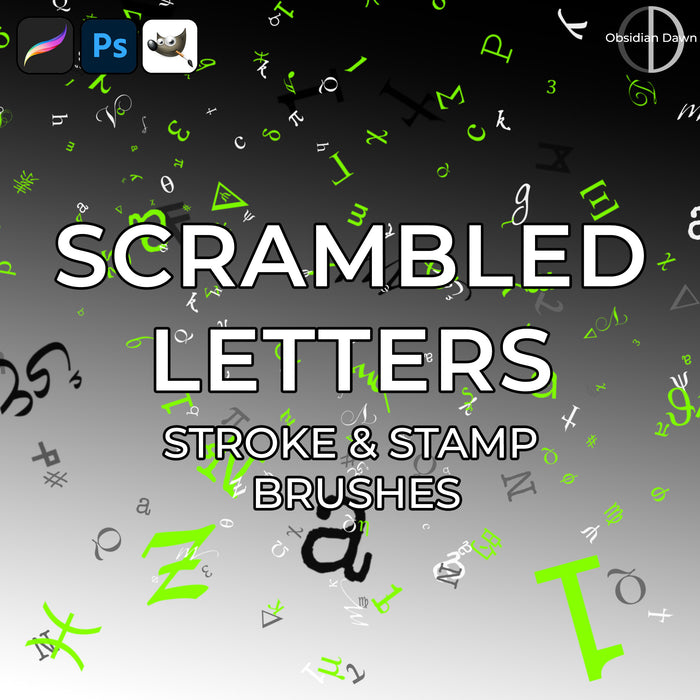
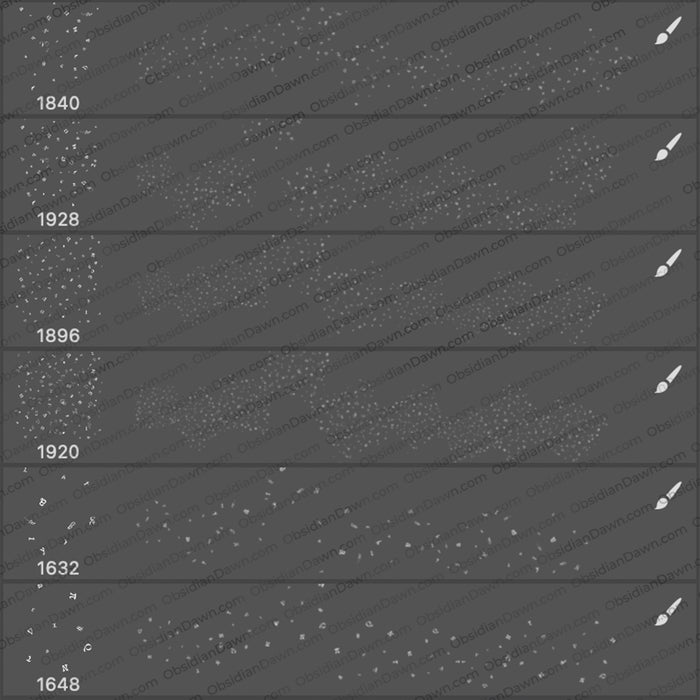
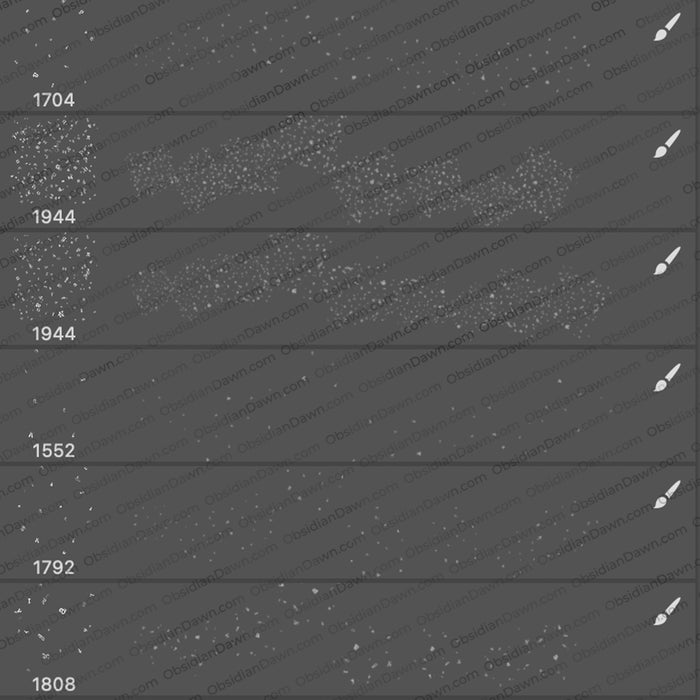
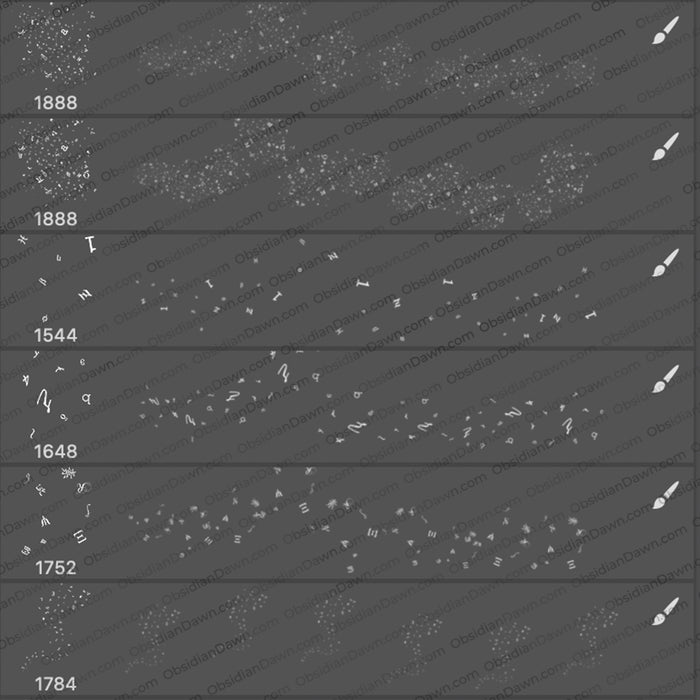
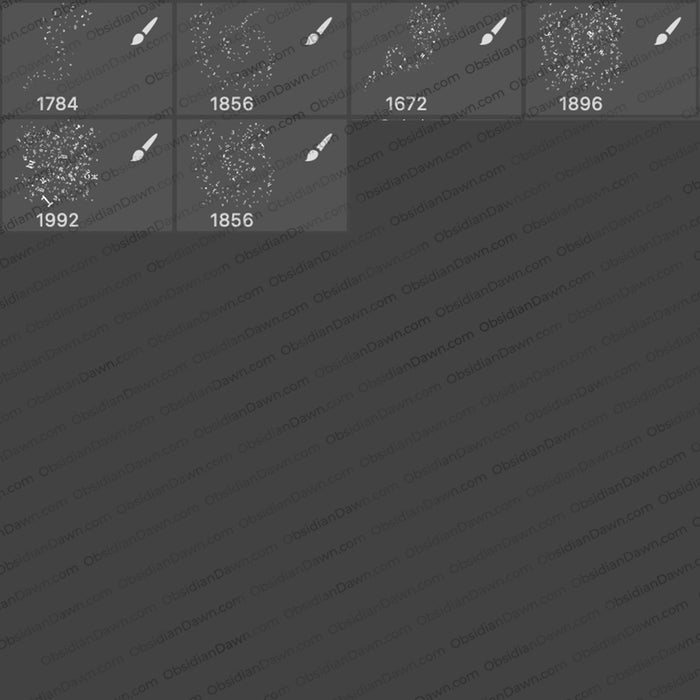
A set of Photoshop & GIMP brushes composed of various random scattered letters, symbols, runes, etc. Some have just a few, some are much more dense, others are swirly. Being that these are just text, they’re also vectors. High resolution, with the average size being about 1900 pixels.

Scrambled Letters Brushes

Programs: Photoshop 7+, Photoshop Elements 2+, Gimp 2.2.6+
Brushes: 24
Size: 3.68MB


>> Download the brushes
>> Download the image pack

Please read my terms of use before downloading!

Random Photoshop Tip:

Did you know that you can change the way that you view your brushes in the brush preset picker?

Select the brush tool and click on the arrow just to the right of the thumbnail that displays in that top area just below the menu. This is the brush preset picker.

Now, click on that small arrow on the top right. From here, you can load all your different brushes, of course, but you can also change the way that they’re displayed. You have the following options:

Text: This will only display the name of the brushes.

Small Thumbnail: This displays small thumbnails of the brushes and the brush size just below it.

Large Thumbnail: This displays larger thumbnails of the brushes and the brush size.

Small List: This displays the size of the brush followed by the brush name. There is a VERY small preview, as well, but you may not be able to make out much.

Large List: This displays a larger preview, followed by the size of the brush and the brush name.

Stroke Thumbnail: This view displays the thumbnail, with the size of the brush beneath it. To the right, it shows you what the brush will look like when you paint with it (this is particularly handy for viewing some of my brush sets that were made to be “painted” with, like our textures brush set and special effects brush set).

* By the way, you can also change the SIZE of that brush preset picker window by clicking and dragging on the lower right corner.

12 Responses to “Scrambled Letters & Symbols Photoshop & GIMP Brushes”

  1. hi

    this didnt help me
    please write how u made the brush and not just give me the brush

  2. @hi: Well, this isn’t SUPPOSED to be a tutorial. It’s just a set of brushes. As for how I made it, I used various fonts and angled them this way and that – a fairly tedious process. That’s it, really.

  3. [...] Im also using a brush set, that I found really useful. You can find it on Deviantart or from obsidiandawn.com. I also used a stock image of Fireworks that helped me to get the effect of an explosion. Before [...]

  4. [...] Im also using a brush set, that I found really useful. You can find it on Deviantart or from obsidiandawn.com. I also used a stock image of Fireworks that helped me to get the effect of an explosion. Before [...]

  5. anonymouz

    ey tnx for the awesome brush set, but i don’t know how to include it to my photoshop brush set. could you post instruction how to do so. tkanks!

  6. anonymouz

    haha, i figured it out how to. sorry for being naive! XD

  7. JoyceB

    Thanks again, Stephanie!!

  8. [...] Im also using a brush set, that I found really useful. You can find it on Deviantart or from obsidiandawn.com. I also used a stock image of Fireworks that helped me to get the effect of an explosion. Before [...]

  9. Thank you so much for sharing with us.

  10. Jay

    zomg this really is awesome 4 smudging Thanks :)

  11. Celly

    Thankyou for maknig these :)
    I dont see many of these, but they are way cool:P
    GJ ;)

Leave a Reply

See Your Image here - Submit Now!
Obsidian Dawn on Facebook