Snow & Snowflakes Photoshop & GIMP Brushes
Posted in: Brushes | Tags: , , , , .

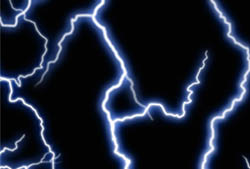
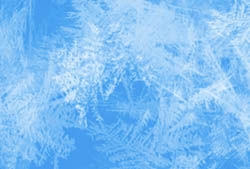
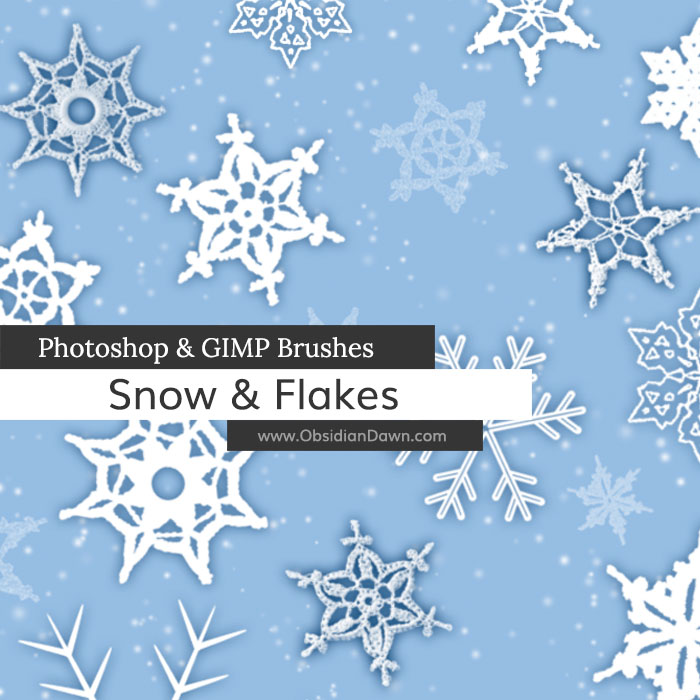
A set of Photoshop & GIMP brushes composed of various snow and snowflakes. This includes various flakes in different shapes, of course, but some of them are patterned, others are vector, some are crocheted, there’s some scattered flake shapes, as well as some made to look like real snow that you can add to any scene to make it look like it’s snowing!

Snow & Flakes Brushes

These brushes were made for NAPP, and were made available on their website several weeks before I released them here. You can find out more information on becoming a member of NAPP and Photoshop User magazine here.

Programs: Photoshop 7+, Photoshop Elements 2+, Gimp 2.2.6+
Brushes: 26
Size: 15.7MB

Snow & Snowflakes Brushes
How to Install?
Terms of Use
 

Download the image pack (for those without Photoshop & GIMP)

50 Responses to Snow & Snowflakes Photoshop & GIMP Brushes

  1. Steve F says:

    Thanks again, a friend told me about these

  2. Andrea D says:

    Thank you!! These are fabulous!!

  3. Erin H says:

    This might just be my computer but the download didn’t work properly. Just to check i downloaded another of your brushes and it worked fine, so maybe you should check this out. :) i would love to be able to use these brushes. :D

  4. Stephanie says:

    Erin: I just checked them and they worked fine for me. Sometimes files can get corrupted when you download them, and I’m guessing that’s probably what happened to you. Try it again, and if it’s still not working for you let me know!

  5. Super Fun says:

    Perfect! Just what I needed, thanks!

  6. AndroidGuys says:

    We just downloaded them and created a background for our website. Take a look! These were incredible snowflakes that really made a difference in our site.

    Thanks!

    http://androidguys.com

  7. Pingback: 20 Christmas Photoshop Brushes : M Collection!

  8. Laura says:

    Thanks for sharing

  9. Evelyn says:

    Wonderful ! Love them! TY

  10. Paul says:

    Very Very Cool Stuff! Thank you so much. Creating a romantic card for my girlfriend! She’ll definitely love it now.

  11. Pingback: Daniel Rouleau » Blog Archive » Bliss — A Photoshop creation

  12. Bogdan says:

    how to copy these brushes in photoshop folder…I mean where to copy abr file???

  13. Roopert says:

    Wow, i just want to leave a huge THANK YOU for this and other brushes!

  14. Pingback: 20 Free Christmas Photoshop Brush Sets | Wallpapers Destkop, HQ Wallpapers, Daily Wallpapers

  15. Imsupermom2 says:

    thank you so much for these brushes. They are beautiful

  16. MJ says:

    great find..tysm!

  17. alethea says:

    are these available to use with illustrator?

  18. Stephanie says:

    Not this set, no. But I do have a snowflakes vector set. You can find it here: http://www.obsidiandawn.com/snowflake-illustrator-vectors

  19. dani says:

    I use your brushes on all my photomanips! They are so fabulous!

  20. Jessica says:

    Stephanie, can I just say you are AWESOME?! I’m making Christmas cards in PSE and was thinking how I’d love to have a snowflake brush. You immediately popped into my mind and I rushed over with my fingers crossed and here they are! THANK YOU!!! Brushes are my new favorite thing because of you and I’m SO excited about them and having so much fun playing with them. My daughters (ages 3 & 5) can’t get enough of your fairy wings and glitter and they’re always asking me if they can decorate pictures of themselves (yes, they can actually get around pretty well doing it all by themselves! It’s amazing!).

    Okay, so I have one question. Since I’m so obsessed I really just want to download all your brushes, but will it slow down the software if I have that many brushes installed? Also, it makes my list of brushes that I have to sort through HUGE! Do you know if there’s a way I can organize them into folders or rename them in the list or something? Thanks again for your generosity and incredible talent!!!

  21. Stephanie says:

    @Jessica: It won’t slow down the software to my knowledge, nope. Not having them installed into a directory, anyway… having them all LOADED might. :)

    You can most definitely organize them in the folders! Or rename them, for that matter.

    Organizing them into folders within your Presets > Brushes folder will only organize them as far as that folder is concerned… not in Photoshop. So, I’d suggest renaming them if you want them to come up a certain way on the list. You could put the category name first, then the brush set name. Something like “Fantasy – Glitter” (Category – Brush Set) or somesuch. Don’t feel like you need to keep the “SS” in there – as long as you keep my credit brush in there, you’ll know it’s from me! Doing it that way will put all the Fantasy brushes together, etc.

    To rename the brush file name, just rename the ABR file.

  22. Maggie says:

    I’m trying to load the brushes into CS3 and its looking for a .TPL file? Am I in the wrong place? Help please!!!

  23. Stephanie says:

    @Maggie: It shouldn’t be. All brushes, from Photoshop 7 through CS4 and beyond (hopefully) are all .ABR files. Did you check out my tutorial? (It’s in the sidebar)

Leave a Reply

Your email address will not be published. Required fields are marked *

*

You may use these HTML tags and attributes: <a href="" title=""> <abbr title=""> <acronym title=""> <b> <blockquote cite=""> <cite> <code> <del datetime=""> <em> <i> <q cite=""> <strike> <strong>