
Oct 16 2007

Sparklies Photoshop & GIMP Brushes

Category: Brushes | Tags: , , , , ,

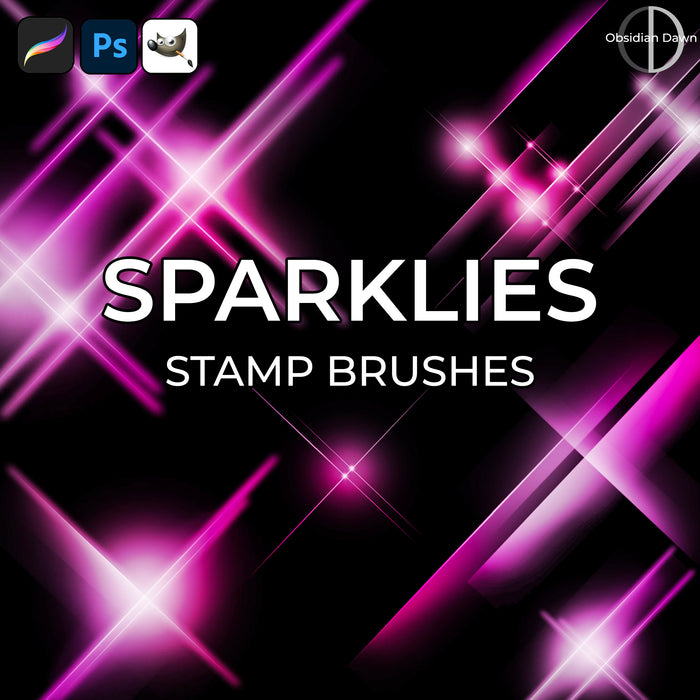
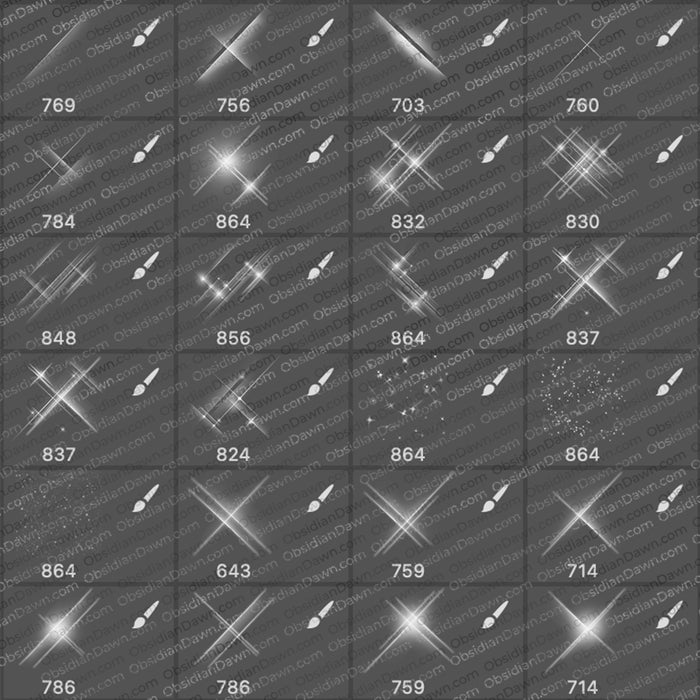
A set of Photoshop & GIMP brushes composed of various sparkles, glows, glitters… whatever you want to call them. I’ll stick with sparklies! They’re all about 900 pixels tall/wide. Includes several groupings of them, some on their own, some scattered about, and even a few “parts” of them to add as accents wherever you should choose.

Sparklies Brushes

Programs: Photoshop 7+, Photoshop Elements 2+, Gimp 2.2.6+
Brushes: 29
Size: 3.54MB


>> Download the brushes
>> Download the image pack

Please read my terms of use before downloading!

Brush Tip: When using these, they look really quite pretty just on their own. However, to achieve the look that I’ve done here in my preview image, you’ll use a white color to apply the brush. Make sure it’s on its own layer. Then, go in and add a layer style to that layer: outer glow. Choose a bright, vivid color. I changed then changed the opacity of that glow to about 55-60%, and I moved the “size” slider up until it looked good to me. Working with a brush that was sized to 400 pixels, for instance, I changed the “size” of the glow to 49 pixels. Play around with it until it looks how you want!

63 Responses to “Sparklies Photoshop & GIMP Brushes”

  1. amazing!really nice:)

  2. but…..i’m having a problem using this brush…

  3. Marie: Well, I’d need more specific info than that to help you, but I assure you that the download is okay. If you’re not sure how to install and use brushes, check out the link in my sidebar. :)

  4. Laura

    Thanks, looks amazing.

  5. Leanda

    Well, it doesent work =(
    Help!
    Whaat should I do? =/

    Love Me.. =)

  6. Leanda: Are you unzipping them? I have a tutorial that explains how to do that: http://www.obsidiandawn.com/how-to-unzip-a-file

    And then here’s a tutorial on installing them: http://www.obsidiandawn.com/installing-photoshop-brushes-tutorial

    Good luck!

  7. Staci

    Thanks for the tips…not sure I would have thought of that. All of this has been VERY helpful, and I really appreciate it!

  8. magnificent ……………………

  9. Ayu

    Very nice brushes.. and also, thanks for the tips

  10. thicha

    Thank you so much

  11. nati

    Thank you so much! It’s the best!

  12. Jessica

    Love this set!

  13. ghazal

    amazing brushes..thanx a lot

  14. M10tje

    These are brushes i really like…
    I’ve used them to design my newyears cards that i’ve send to my family.

    If i know how then i would show them you .

    M10tje from Belgium

  15. Loop_Soop

    Hey, how come I can’t use the brushes? The thing keeps sayin it can’t find the file! >:(

  16. @Loop:

    After you download/unzip the file, load it into your brushes folder—typically Adobe\Photoshop XX\Presets\Brushes—select the brushes tool; click the down arrow; load brushes; and select the one you want to use.

  17. Thanks, Leprakawn. I actually sent an email to Loop_Soop, but since I had to do all my latest responses from my iPhone, it was too much work to come put it here, as well.

    I directed him to my installation tutorial, which is in the sidebar, for any of you having the same problem!

  18. Dianne

    I’ve just been playing with the sparklies and I’m just blown away with what you can do. They are fantastic. This is all new to me so I’m like a kid in a candy shop. Thank you for all the fantastic brushes and all your help you give along the way.

  19. vm

    thanks these are totally cute!!

  20. Sakruaa

    love all the brushes! =D

  21. Faye

    these are incrediable. I love them. Thanks for sharing

  22. pedro leon

    para instalar las descargas solo tienes q extrae el archivo y cuando este extraido lo copias boton derecho del mouse y buscas tu programa en mi caso photoshop cs3 y cuando lo tengas solo le pones pegar archivo o paste en ingles boton derecho mouse tu programa tiene q estar cerrado ok es muy facil ojala puedas instalarlo.

  23. JoyceB

    Thank you!

  24. k4sh1r0

    thanks alot

  25. how WONDERFUL!! Thank you so very much for sharing!! :) Have an AWESOME day!! :)

  26. sugaryang

    thanks for sharing…very nice

  27. Tia

    hey thanx for these lovely brushes!

  28. sabrinaaaa

    okayy… idk what im doinggg! whenever i click download, it says sumthing like ‘open with WinRAR.ZIP(default) ‘ i clicked ‘ok’ and for some reason it showed up on a thing that said ‘??? WinRAR ( eveluation copy)’ on the top bar. i have a 2004 (or 2005) computer, and it might be different. i absolutely DON’T know how to install ANY brushes, and don’t know how to put it into gimp either.

    thanks for your helppp!! even though i didn’t understand anything that was listed heree.

    =D

  29. alexis

    chvr la paguina muy utiles las brochoas

  30. @sabrinaaa: Yep, you must have WinRAR installed on your computer, which is a program that will help you to “unzip” the files. As far as how to do it, I have a few links in my sidebar that should be helpful. Here’s a link to the tutorial that explains how to install and unzip your file: http://www.obsidiandawn.com/installing-photoshop-brushes-gimp-tutorial

    Hope this helps!

  31. Alicia B

    Thanks so much!!! Awesome brushes! I love using them alone but would love to achieve the glow affect you used above. I use Photoshop CS3 Extended and Photoshop Elements 6.0. Would one be better to use than the other for this particular project? Also is there anything like Elements Magic Extractor in CS3? Thanks so much for all your help and time and of course for sharing your amazing talents!!!

  32. Alicia B

    So sorry! I found how to do layer style on CS3. Still no luck on Elements but I will manage with just CS3!!! Seems like you just have to ask and the answer will become clear!!! LOL! Thanks so much!

  33. @Alicia B: I’m afraid I know very little about Photoshop Elements to help you provide any basis for comparison. So I’m not sure about the Magic Extractor or which would be better. However, either should be fine, since what I’ve done is use the brushes on their own layer, in white. I then add a layer style (at least, that’s what it’s called in CS3, it’s something similar in Elements but I’m not exactly sure what… maybe under filters of some sort?) of “outer glow” and choose a really bright color. Like, all the way to the upper right on the color palette. Make sure it’s over a darkish background, and voila! That’s it.

    Hope this helps, and sorry I couldn’t help more!

  34. khaiser

    amazing brushes. thanks a lot

  35. Char...

    Your brushes are amazing! =D They totally help my beginner-looking work to some kind of Pro-ish work. ^__^ ….But, not to be complaining and all, why are they so big? o_O…The file size I mean. Anyway, nevermind, and I’ll keep enjoying them. ;DDDD

  36. @Char: They’re big because when I made them small, people complained about them being too small. The way Photoshop brushes works, is.. you can ALWAYS make them smaller, and not lose any quality. But you can’t make them LARGER without a loss of quality. So, I make the brushes large, and that makes the file sizes large. Sorry about that! :( Some of them you’ll find are much smaller… like the vector brushes, because they don’t have any real “grays” or transparencies.

  37. Linda

    Thank you for sharing.

  38. If I had to pick a favorite, and thank goodness I don’t because I like so many of your brushes, but if I had to; it would be sparklies. It adds just the right bling to the edge of so many scrapbook pages. Thank you so much.
    Bobbie Bluegill

  39. svaler

    I can’t find “outer glow” in my layer settings.

  40. Sandy_in_MD

    Terrific set – thank you!

  41. I’m having trouble with the brushes. I open the file but how do I use them on Photoshop? Where do I find the brushes on Photoshop?? Help

  42. Thank you for making this fabulous resource available. Your brushes are absolutely amazing!

  43. minikating

    Hi, does this work for ps cs2 or cs3??

  44. @minikating: Yep. When I say that it’ll work with 7+, that includes all of the CS’s. :)

  45. me

    thanks for your brussstooooools

  46. Stephanie

    Hello I have a question. :) Will these brushes work for Photochop Elements aswell?

  47. @Stephanie: Yep. The preview images and the information above both say that they work in Photoshop 7+ (which means 7 and all the CS’s), and Photoshop Elements 2+ (which means any Elements from 2 upward). Hope this helps! :)

  48. cnc

    GRATE SPARKS & GRATE SHINING

  49. Celly

    Thankyou!
    Really looking forward to use this :)

  50. mikamagik

    Wow, I am so glad I found your site. I am so inspired! Thank you so much.

  51. themissus

    I have been trying to find brushes like this for so long that actually work – these are just brilliant

  52. [...] pinceaux ayant permis de donner les scintillements peuvent être trouvés ici. Pas de commentaire Articles pouvant vous intéresser [...]

  53. [...] pinceaux ayant permis de donner certains scintillements peuvent être trouvés ici. Pas de commentaire Articles pouvant vous intéresser [...]

  54. [...] pinceaux ayant permis de donner certains éléments de lumière peuvent être trouvés ici et ici. Pas de commentaire Articles pouvant vous intéresser [...]

  55. Joanna Lila

    Thank you, I’m working about a project , I study Film and animation!!! You really helped me thnxxxxx!! <3

  56. angel89

    i love these brushes thank you so much!

  57. Yuuka

    it`s beautiful … i though is very wonderfull .. thak you ..

  58. Addis Atnafu

    So nice, thank you for sharing.

  59. saeedeh

    Please download icon to leave the site. Mrsy

Leave a Reply

See Your Image here - Submit Now!
Obsidian Dawn on Facebook