
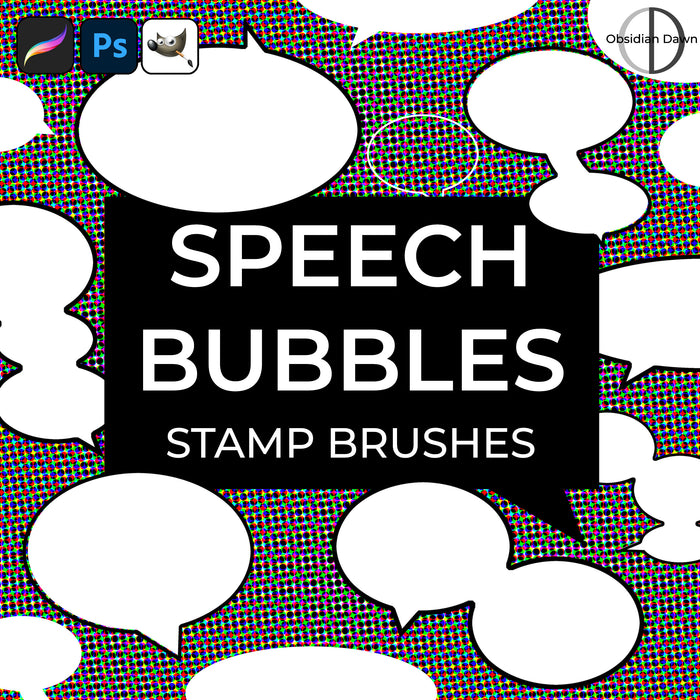
Speech Bubbles Photoshop & GIMP Brushes

Posted in: Brushes | Tags: , , , .

No, I haven’t disappeared off the face of the earth. I’ve been out of town a bunch, though, hence all the quietness and lack of releases. I’m also currently working on painting a book cover, and under a pretty tight deadline, so I haven’t had a lot of free time. Expect things to pick back up in another week or two.

This release has been requested several times now, so I thought I’d finally get around to making a set.

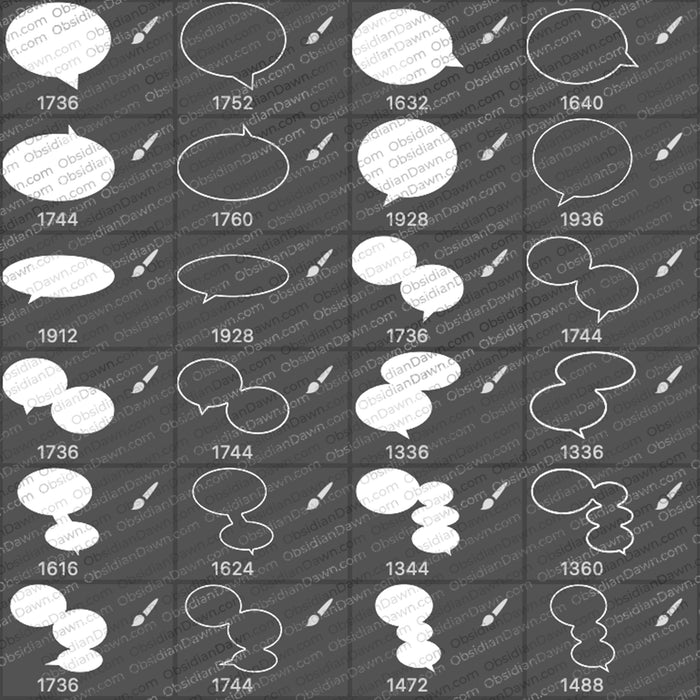
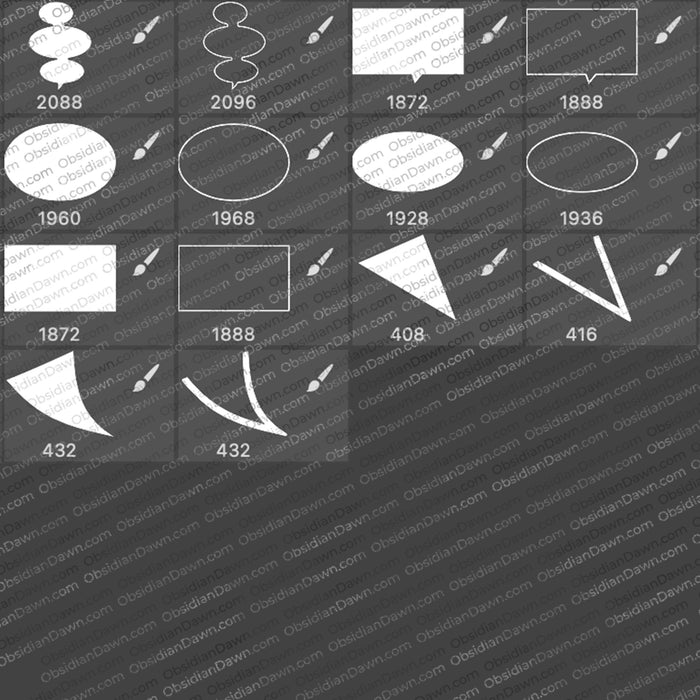
This set of Photoshop & GIMP brushes is composed of various shapes of speech bubbles. It comes with both the bubble shape itself and a second brush for adding an outline to that bubble, if you so desire (see the preview image for what I mean).http://www.obsidiandawn.com/wp-admin/post.php?action=edit&post=1936 They are all high resolution vectors, with an average size of about 2000 pixels.

Speech Bubbles Brushes

Programs: Photoshop 7+, Photoshop Elements 2+, Gimp 2.2.6+
Brushes: 38
Size: 1.7 MB

Speech Bubbles Brushes
How to Install?
Terms of Use
 

Download the image pack (for those without Photoshop & GIMP)

Photoshop Brushes Tip:

With these, you’ll likely want to know how to rotate the brushes around to get them to show up in the right orientation. You can do this AS you’re applying the brushes by opening your brushes tab (F5), and then clicking on “Brush Tip Shape” under the menu on the left. Then, over on the right, you can either flip the brush around vertically or horizontally using “Flip X” or “Flip Y”. Also, you can change the angle of the brush’s application by typing in the angle numerically or clicking and dragging on that circle with the X through it just to the right of it, and facing the pointing arrow in the right direction.

Also, when using these, if you’re going to be using the bubble shape AND the outline, make sure that you take note of what size the brush is when you use it so that you can get the outline to match perfectly, too. In other words, choose the bubble shape brush (“single1″ for example), resize it to the size you want (150 px, perhaps), and then set the corresponding bubble outline brush to be the same size (150 px), and THEN use it. That way they’ll match up perfectly!

Be Sociable, Share!
  • Twitter
  • Facebook
  • email
  • StumbleUpon
  • Delicious
  • Google Reader
  • LinkedIn
  • BlinkList

Comments are temporarily closed. If you need to contact us, please use our contact form.