
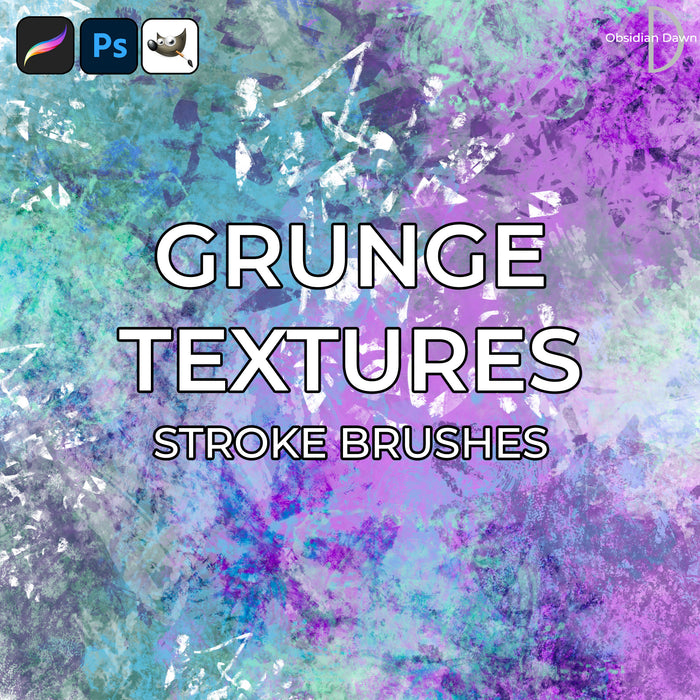
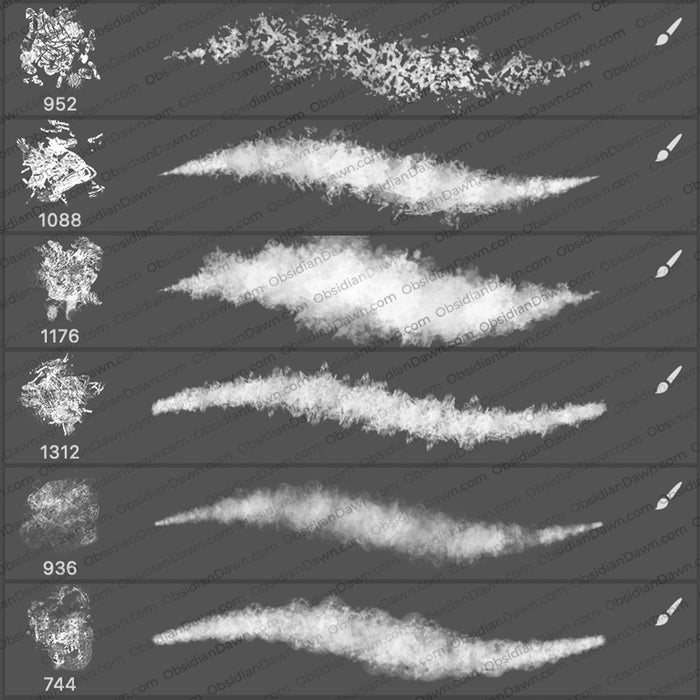
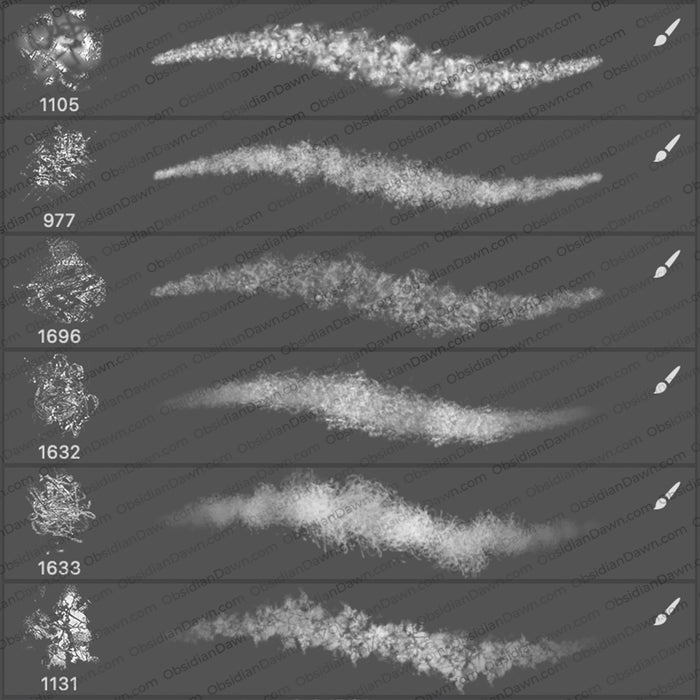
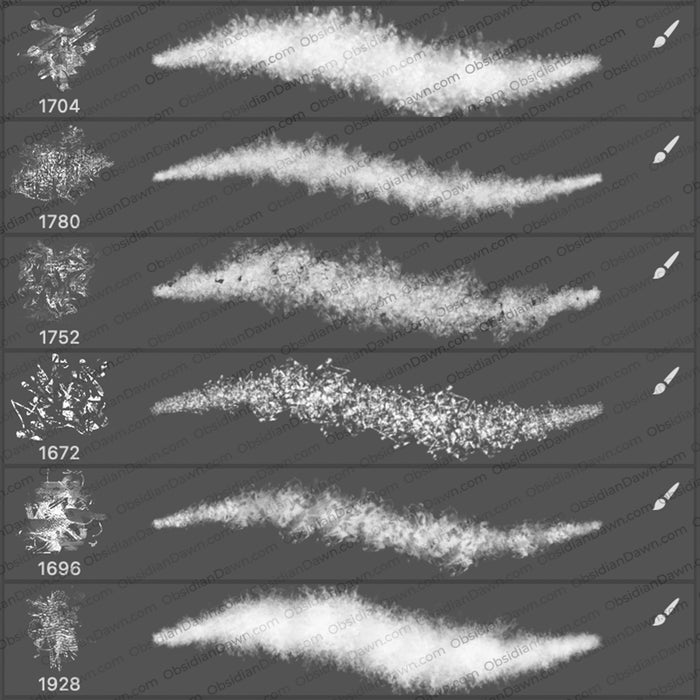
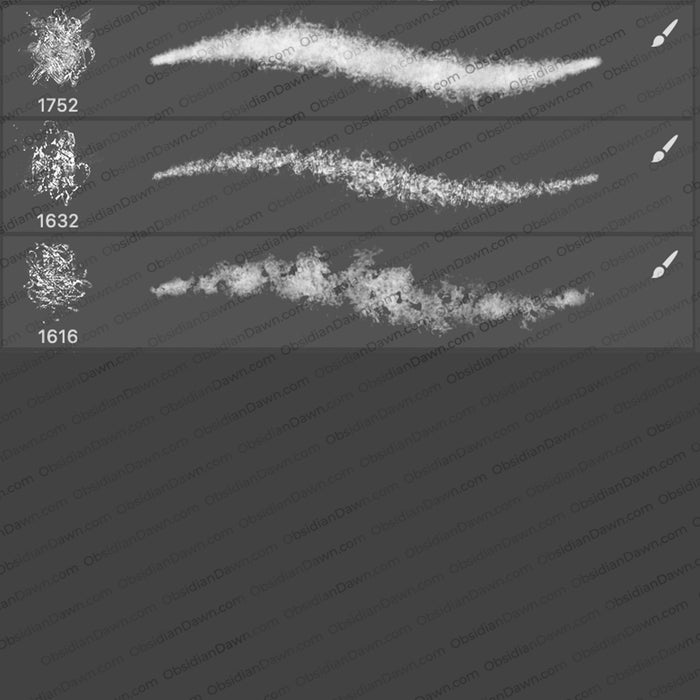
A set of Photoshop & GIMP brushes composed of various painted textures. These brushes are made for digital artists / painters, as they are “painted” with rather than “stamped” on.
Thy create a texture as you paint with them. These are WONDERFUL for painting textured backgrounds (like something you’d see behind a portrait that you’d get taken at a photography studio). Or whatever! Come up with your own ideas for how to use them… the uses are really limitless.

Programs: Photoshop 7+, Photoshop Elements 2+, Gimp 2.2.6+
Brushes: 21
Size: 16.4MB
Download the brushes
Download the image pack
Please read my terms of use before downloading!
Note: I’m supplying an image pack for this so that use can use the base images for whatever, if needed. But if you download the image pack, obviously none of the special styles that I’ve added to the brushes will be included!
Brush Tip:
While these brushes are already made with some built in special styles to them, you may want to edit them and play around with the various texture effects that you can create!
To do that, you’re going to want to check out your brushes palette window. It is located in the upper right section of your Photoshop window. You can open it by clicking on the “Brushes” tab or by hitting F5 (Mac: F5).
Some of the settings that you’ll want to play with (the section they’re under will be in bold):
- Brush Tip Shape: Spacing – this changes how often the “imprint” of the brush shape is made, spreading it out or compacting them more tightly together
- Shape Dynamics: Size Jitter – this changes the size of the brush each time that an imprint of the brush shape is made
- Shape Dynamics: Angle Jitter – this changes the angle of the brush each time that an imprint of the brush shape is made
- Shape Dynamics: Roundness Jitter -this changes, well, the roundness of the brush shape each time that an imprint is made – from flattened to a full circular shape
- Scattering: Scatter – as the name implies, this scatters the brush imprints around more or less
- Other Dynamics: Opacity – this changes the opacity of the brush each time that an imprint of the brush is made
This is only a start. If you want to learn more about these settings, check out my Tutorial on Advanced Brush Techniques in Photoshop.


3 Responses to “Texture Photoshop & GIMP Brushes”
These are sooo amazing! I’ve been using GIMP for a while and hated the brushes on there – they had no life! But with these brushes that you’ve made – I feel like my graphics (I’m so an amatuer and just use them to teach my younger siblings with) are coming alive! Thank you!
Hey, i just found your site, through a link.
And then i tried downloading your brushes (refering to the one on this page)
and i’m not sure how to input them into my photoshop? or are they already there? *some where*
is there something i did wrong, or didn’t do? or is there a program i need to download before i download your brushes?
you can email me, your reply.
thanks, sincerely. A.P
Thankyou…
Leave a Reply
Other Links
Member Center
Getting Started
Affiliates
Helpful Links
Follow Us
By Program