Water II Photoshop & GIMP Brushes
Posted in: Brushes | Tags: , , , , .

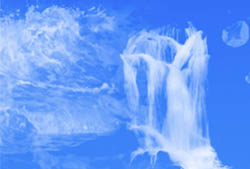
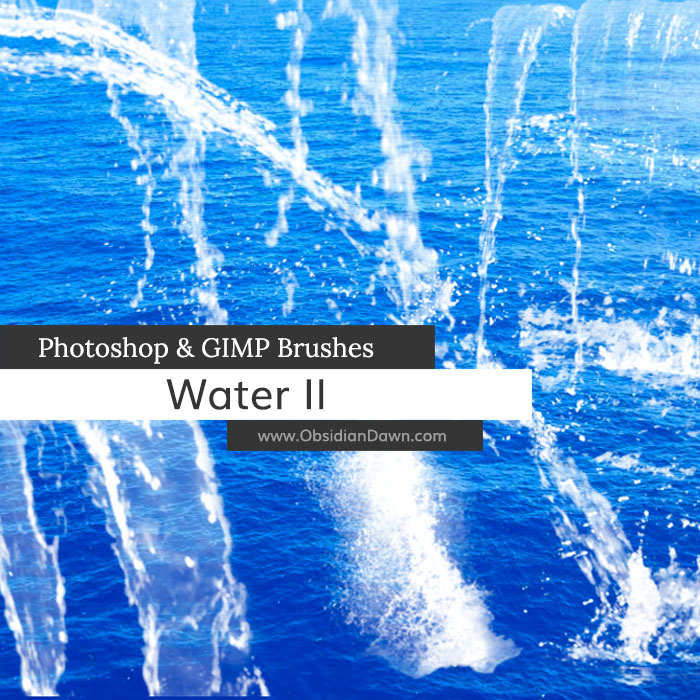
A set of Photoshop & GIMP brushes composed of various various water shapes. These are all very high resolution, with the average size being about 2000 pixels.

Water II Brushes

Be sure to also check out our original Water Photoshop & GIMP Brush set.

Programs: Photoshop 7+, Photoshop Elements 2+, Gimp 2.2.6+
Brushes: 30
Size: 19.3MB

Water II Brushes
How to Install?
Terms of Use
 

Download the image pack (for those without Photoshop & GIMP)

Random Brushes Tip:

Ever tried to paint with a brush and thought that the edges didn’t seem as clean and smooth as they could be? The way that the hard-edged brushes in Photoshop’s “Basic Brushes” are set, that just may happen when you’re working at higher resolutions.

So, how do you fix that?

  • Click on your brushes tab (or hit F5 to bring it up).
  • Click on “Brush Tip Shape” and look at the preview image of the brush at the bottom. You’ll be able to see those bumpy edges if you set the diameter at a high size.
  • Now change the “Spacing” so that it’s set to about 15% or lower. You can set it to 1% to make it perfectly smooth for those ultra-high resolutions, but if you have a slower computer, that may slow the brush down when you go to use it. So just find a nice percentage where you don’t see all the bumpy edges.

That’s it! I don’t expect many of you to need this tip, but I remember back when I was first learning to paint digitally in Photoshop, and I couldn’t figure out why the edges were coming out so bumpy sometimes. So I thought I’d share!

Share and Enjoy:
  • Digg
  • Facebook
  • Twitter
  • del.icio.us
  • StumbleUpon
  • Blogplay
  • Google Bookmarks
  • Print

50 Responses to Water II Photoshop & GIMP Brushes

  1. kezman21 says:

    Thanks so much!

  2. kevin says:

    you got lovely brushes, i must commend you guys for the outstanding jobs you are doing.

  3. ravimorey says:

    its really very fine set.
    thank u so much

  4. Sylvia says:

    Thank you so much .
    I love your work.Splendid

  5. monkeywing says:

    Thank you for making these incredible brushes available

  6. leafoley says:

    thanks for all the random tips too, I’m new to this and lots of them are really helpful

  7. amar says:

    thanks dude

  8. amar says:

    thanks …

  9. 织梦 says:

    thanks this BRUSHES ,love it

  10. jade says:

    hey i love ur brushes…i downlaoded the first set but that was off deviantart.com and they worked fine..but these dont work..i think this set isnt for gimp..bcuz it doesnt show up on gimp..ive put them in the rite folder n evrythin……..plz help

  11. Stephanie says:

    @jade: I’d love to help you, but I’m not a GIMP user. I assure you, though, they DO work in GIMP 2.2.6 and onward. The brushes I have up here are the same ones as the ones I put on dA. Perhaps you need to restart GIMP? That happens in Photoshop. Based on what users have written in comments, though, there’s a load function or something in GIMP, too, which Photoshop doesn’t have. Did you do that? I’m just guessing here, mind you. I’m an expert in Photoshop, but never used GIMP in my life.

    Your best bet at this point would be to ask someone on dA or in some GIMP forums, how exactly you get Photoshop brushes to work in GIMP.

    Best of luck!

  12. Heather says:

    I am unable to download the brushes. The message is that it does not exist

  13. Stephanie says:

    @Heather: Whoopsie. Fixed now, thanks!

  14. Heather says:

    Thank you so much for these brushes and your very fast reply.
    I appreciate these brushes very much

  15. Piotr Lorenc says:

    They are great, love to play with it in PS, thank you so much, Piotr

  16. Anastaziia says:

    Ive been wondering a long time about this, can I somehow rotate the brushes? If yes, then please tell me how ^__^

  17. Stephanie says:

    @Anastaziia: I explain it in detail in my “Advanced Brush Techniques” tutorial, or you can read my mini-tutorial in the form of a brush tip on this post: http://www.obsidiandawn.com/dripping-photoshop-gimp-brushes

  18. Sandy says:

    Thanks for the beautiful brushes and the tip! Wow!

  19. nexus says:

    Beautiful brushes–thank you

  20. Craig Abbott says:

    I am busy creating an artwork using lots of water effects and have been going mad trying to make waves from actual photographs look effective…

    Your brush packs are EXACTLY what i was looking for, its saved me so much time and now the artwork looks fantastic!

    I cannot thank you enough

  21. terry says:

    you dont need to make them so big because Photoshop,Photoshop Elements,and GIMP can make them smaller and bigger

  22. Stephanie says:

    @terry: Yes, I’m aware of that feature. However, try making a small brush (something like 300 pixels or so) full size (2000 pixels). It will get all grainy and pixelated. There IS a reason to make them this large, I assure you. :) I’ve been doing this for like 10 years, and I started with small brushes, thinking the same thing until I realized how impossible it was to make them as large as some people needed them.

  23. Pingback: Manipulate Water to Create a Splash Artwork in Photoshop | MadTuts

  24. Wildrocker92 says:

    Thanks!
    I’ve found this very useful :)

Leave a Reply

Your email address will not be published. Required fields are marked *

*

You may use these HTML tags and attributes: <a href="" title=""> <abbr title=""> <acronym title=""> <b> <blockquote cite=""> <cite> <code> <del datetime=""> <em> <i> <q cite=""> <strike> <strong>