
Aug 28 2007

Arcane Circles Photoshop & GIMP Brushes

Category: Brushes | Tags: , , , ,

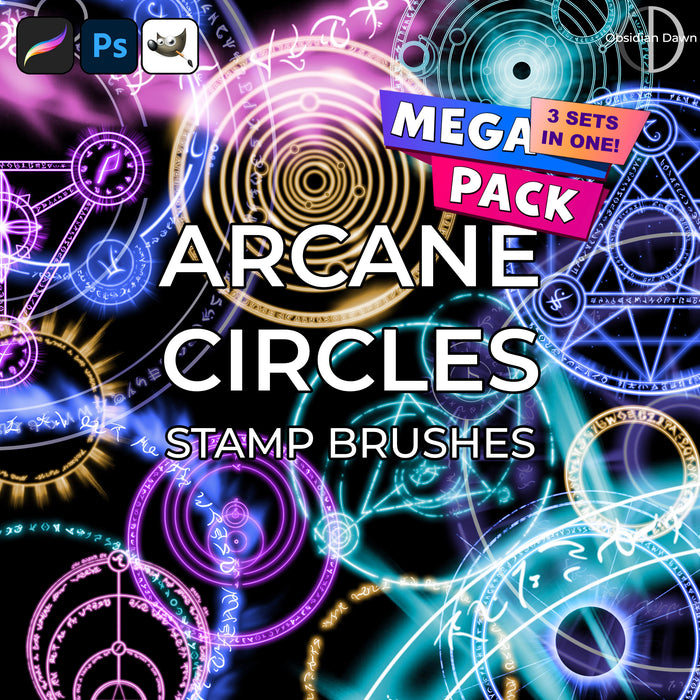
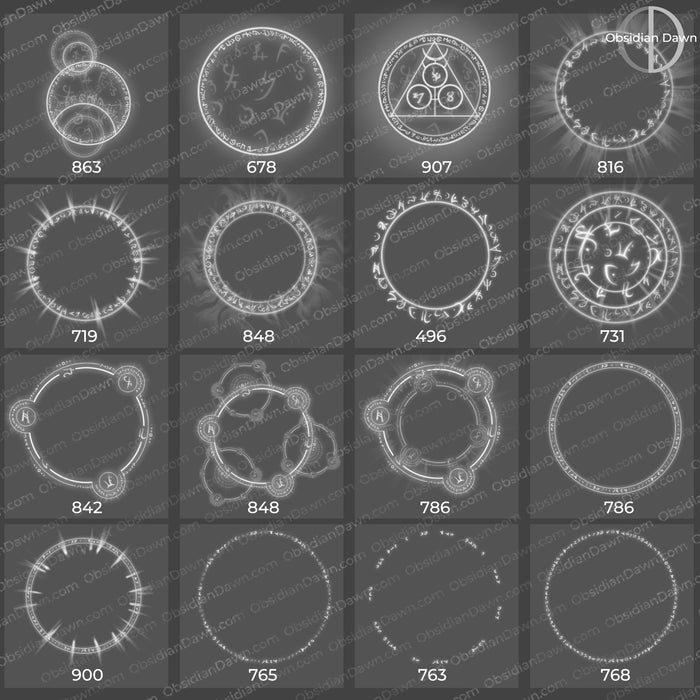
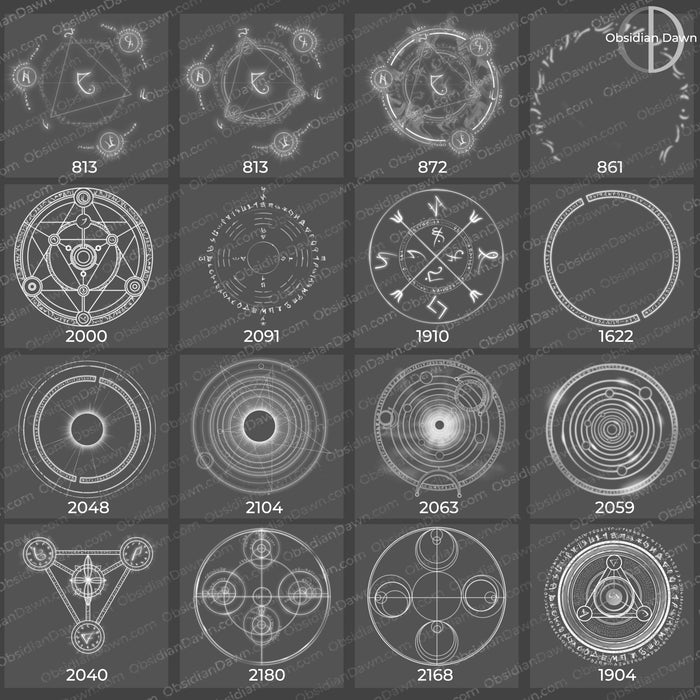
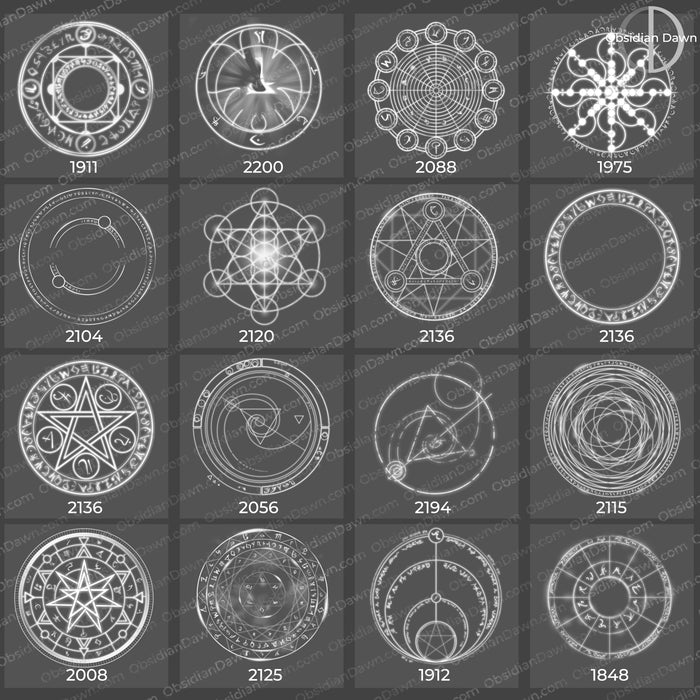
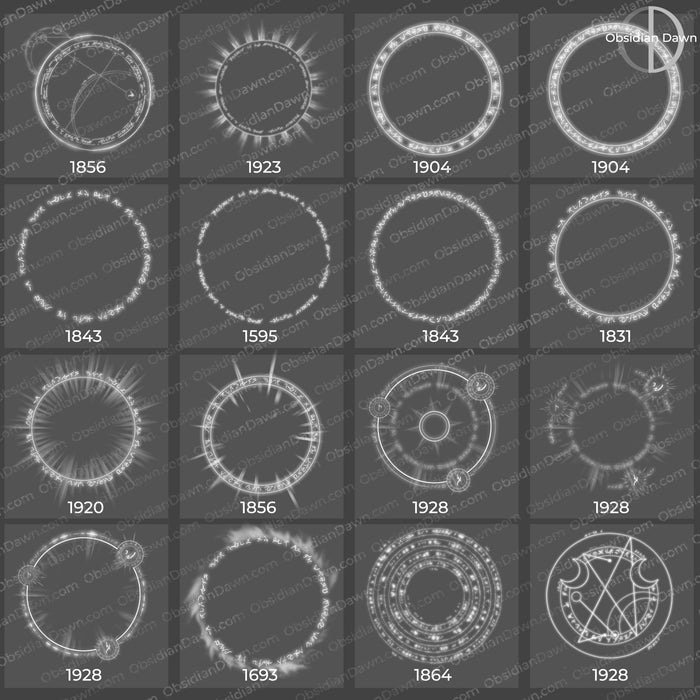
A set of Photoshop & GIMP brushes composed of various arcane circles and symbols. These are all original designs, but some are based off alchemical, mythological, etc. designs. These should have numerous uses in fantasy or anywhere you need a cool runed symbol!

Arcane Circles Brushes

Be sure to check out our Arcane Runes Photoshop & GIMP Brushes, which were used to create this set!

Tip: Apply an outer glow to these using a strong, bright color to make them look like they’re glowing like in my preview image!

Programs: Photoshop 7+, Photoshop Elements 2+, Gimp 2.2.6+
Brushes: 23
Size: 4.28MB


>> Download the brushes
>> Download the image pack

Please read my terms of use before downloading!

Glow Tip:
for Photoshop:

  • start with a dark background
  • make a new layer (SHIFT + CTRL + N for PC) (SHIFT + CMD + N for Mac)
  • select the brush in this set that you’d like to use
  • making sure white is your foreground color, click somewhere on the canvas to use the brush
  • click on the “Add a Layer Style” button at the bottom left of your layers palette (or choose Layer > Layer Style from the main menu) and then choose Outer Glow
  • set the blend mode to “Normal” and choose a strong, saturated color (bright red would work well, light pink would not)
  • play with the “Size” slider until it looks how you want it, and then hit OK

for GIMP: (and a big thank you to Mus, who contributed this explanation!)
(Ok, I’ve just randomly experimented and finally knew how to make an “outer glow” for the GIMP users. To make the glow like seen in Stephanie’s preview picture, with GIMP opened, first select which design you want, next, go under menu; Filters/Edge-Detect/Difference of Gaussians.

Next, a pop-up window will appear. At first, you will notice that the preview window shows your image with inverted-colours. Do not worry, it will not affect the resulting image, yes by the way, let all boxes be checked initially except “invert”. After that, make sure the ‘chain’ under “Smoothing Parameters” is ‘broken’, then set “Radius 1″ to zero or as low as possible. Then set “Radius 2″ to a value that you like as seen in the preview image. I personally like the value “0″ for “Radius 1″, and “9.20″ for “Radius 2″. After you’re done, CHECK the box “invert” and press “ok”. Hopefully, you will get the outer glow effect that you desire.

P.S. I’ve noticed that some Rune characters/circles have this weird distorted color like you see in a cracked LCD screen especially with a “Scale: 1″ size after you did the above method. One way of removing this is to uncheck “Normalize”. If you get nothing or your image is totally erased, redo it by increasing (trial, i’ve done it with these values. Its up to you to customize it to make it better) “Radius 2″ value to around “30″ and “Radius 1″ value to “20 or 10″, with “Normalize” unchecked.

If it still doesnt help…just erase them off slowly.

Hope I’ve been a great help for you guys out there!

65 Responses to “Arcane Circles Photoshop & GIMP Brushes”

  1. dlblue

    http://xstreetsl.com/modules.php?name=Marketplace&file=item&ItemID=1007546
    erm………. this doesn’t look good for the person selling your work like this.

  2. dlblue: Thanks for letting me know. I’m going through the motions of trying to get in contact with those people now. They MAY have purchased a commercial license for them, and in that case then it’s okay. But I’m in the process of making sure of that now. Thank you!

  3. Antivenom

    I’ve been looking for something like this for soooooo long! Thank you, thank you, thank you!!! ^_^

  4. John D

    These brushes are really gorgeous! Excellent work

  5. Tanatsos

    Thank you so much…u r so talented…
    i envy you!!! (in a good way) :P

  6. Hey there,

    I used these brushes on my comic, titled ‘Spirit Armaggedon’, that will be published in America in several months.

    Back cover
    http://i300.photobucket.com/albums/nn1/serpentwitch_artworks/BACK-COVER.jpg

    and a little bit on the front cover (near the title)
    http://i300.photobucket.com/albums/nn1/serpentwitch_artworks/COVER-FINAL-1.jpg

    that is all, and I’ve credit you in the first page (inside)
    http://i300.photobucket.com/albums/nn1/serpentwitch_artworks/page-0Creditpage.jpg

    Thanks for the great brushes! :)

  7. @Serpentwitch: That’s awesome! Thanks so much for sending it to me, and for the credit. I appreciate it! Best of luck with the new comic!

  8. lyn

    Thank you! your brushes are gorgeous!

  9. Uriah

    Thanks! Used here: http://sparkstudios.deviantart.com/art/Teaser-112350838

    Hope it conforms to the rules okay…I think so…

  10. martin

    how do i download the brushes

  11. @martin: Click on the link that says “DOWNLOAD THE BRUSHES” ;)

  12. martin

    ohh i got that part but it says choose a program from the list…..im not that dumb

  13. @Martin: Ahh. It asks you to choose a program? There’s just one brush file, and it’s an ABR file. And it works with Photoshop 7 and up, Photoshop Elements 2 and up, and GIMP 2.2.6 and up. If you don’t have any of those programs, you’d need to download the image pack and make the JPGs into brushes yourself. Hope this helps! :)

  14. martin

    thanks the pictures are pretty

  15. Jessica

    OMG. i love ur brushes

    theyre pretty and fun and perfect!!! :]

  16. buma

    You do a great job,i mean you bring so much pleasure to people with your great talant and on top of that you allow us use your talant,Thank you very much for your gift.!!!!!

  17. André

    Hello there! I’m from Brazil, but I loved your work. Not only this brushes, but all of them! Congratulations!

  18. Noomi

    I have got photoshop elements 5, and it should work. But it don’t! They ask me to choose a program from a list, and when I choose photoshop elements 5, they take up photoshop and opens a new picture. But nothing happens. I don’t get the brush into photoshop and I don’t have it on when I try to paint. How come?

  19. @Noomi: They definitely will work, but it sounds like you’re not really loading them properly. To use brushes, you don’t click on the .ABR file that you downloaded and unzipped (you need to make sure you unzip it first, of course!). You put it into your brushes folder (in regular Photoshop, it’s Photoshop > Presets > Brushes, it should be similar with Photoshop Elements, too), and then when you load up Photoshop, the brushes will be there to choose from when you go to change sets.

    I have a tutorial that explains it, but it’s made for Photoshop and not Photoshop Elements. Still, it should be very similar. You can find it in my right sidebar under “Getting Started.”

    Good luck!

  20. Raven

    Thanks! Used here: http://img26.imageshack.us/img26/7050/q4wfinal.jpg

    I love your brushes! =)

  21. cookie

    thanx steph ^^

    i lways wanted these alchemy stuff

    i doubt i’m going to remember to credit u for this so i’ll tell u now that i’m very grateful these ^^

  22. @cookie: Well, you NEED to remember to credit me for it in order to use them. :) Otherwise, you’ll need to purchase a commercial license, which will make it so that you don’t need to. You can read about commercial licenses here: http://www.obsidiandawn.com/commercial-licenses

    Glad you liked them!

  23. Sayna

    I love your brushes! They are so beautiful! I think really they are some of the best brushes you can find in the internet!
    Thank you!!!!! =)

  24. spyro

    hehee… thanks u so much, just when i almost giving up and decide to do it myself, this really save me tons of work ^___^

  25. Wezetta

    I tried downloading but it wont take me to the zip file…..just the program?

  26. @Wezetta: If once you download it and click on it, it’s trying to open Photoshop, then your browser must have already directed it to unzip the file. Clicking on an .ABR file will open Photoshop, but then not do much more with it. Check out my sidebar for a tutorial on installing and using brushes, that might help! :)

  27. Aireon

    Thanks for the Arcane circles. I used them for a pic I did u can check it out.

    http://rubydragoon4444.deviantart.com/art/Dark-dragon-124816622

    It went well with the pick too.

  28. ian

    brush nya keren”…
    mendukung imajinasi saya tuk berkreasi…
    photoshop mank keren…..

  29. Sandy_in_MD

    Fantastic designs – thank you!

  30. Your work is gorgeous. I made an icon with this brush for my LiveJournal (I’d been looking for a *pretty* alchemy image to use) and included your website and deviantART in the userpic comments to credit.

  31. Chase

    if i have a deviant and use these, can i put the credit to you on my profile page, or do i have to put the credit at the bottom of every artwork i submit that uses it? either or is fine for me.

  32. Juan

    I search it in all sites… thanks…

  33. techstepman

    http://techstepman.deviantart.com/art/arcana-desktop-135792787\
    aaaaah just fooling around…

    amazing brushes though!!!
    thank god there’s people like you out there…
    i could never do these even in a million years!!!

  34. Andrew

    Hey stephanie i really love this pack of brushes, one of my faveroutes! i recently used them in the cover of my book, just one of the symbols around the e type rune from your Runic brushes, also 3 smaller runes with an engraved effect on a picture of a crystal.

    So i was wondering for when i get it published if i may use them in the cover, as i wasnt to sure about your terms of use.

    Of course you will be on the first page jsut before the start of the actuall story and be credited along with the adress, along with a few other people i wish to give credit to. I would really apreciate if i could use them as they really fit the theme of my book.

    PS: If you want to see the picture email me and il send them to you

  35. Lycaeonia

    I am adding a Comment on here only because I have taken a close look at the design of the symbols used for the Arcane Symbology. I am copying the email I have sent to Stephanie about this.

    Stephanie,

    I was reviewing your symbols used in your arcane symbols. I also happened to read your disclaimer about use of the symbols. I’m sorry to be the bearer of bad news but most of your symbols you cannot take credit for. I see numerous Germanic Runic Symbols as well as a few Sumarian, I even noticed one which is Japanese…not to mention various others that are used in well published games which are under a different artist. Sadly to say you cannot give yourself sole credit of your Arcane Symbols.

    If you have any questions feel free to email me. I can supply the proof to back this up.

    Sincerely,

    Lycaeonia

  36. @Lycaeonia: I actually mention on that page that a lot of the runes are based off of (or are actual) runes. As in, part of an alphabet/lettering system. Some of them are not. Some of them are close, but not quite. I tried to add in my own touches, but nowhere did I mention that the credit for the RUNES was mine. I also have “Alchemy Brushes” that have alchemy symbols, and that’s not me trying to claim that they’re my own creations!

    In short, anything that is not my creation is not copyrighted, because it’s part of an alphabet. If it’s the same as something in a “published game”, then they also took it from an alphabet or rune that was in existence. I assure you, I’m very big on not violating copyrights because I don’t want it to be done to me, and I did nothing of the sort.

    I no longer have any of the runes/alphabets that I used as references/ideas, I’m afraid, but if you were to look up any of the ones you think may be copyrighted, I’m quite sure you can find them on the internet elsewhere as actual runes/alphabets.

    I appreciate your concern, though. I’d want someone to stick up for me if they saw someone abusing my copyrights, too!

  37. Lora

    um.. so i odwnloaded the burshes but now what? where are they in photoshop? how do i get them there???

  38. @Lora: I have a tutorial that explains it all. You can find it in my sidebar, under “Getting Started” where it says “Installing Brushes”.

    Hope this helps!

  39. Celly

    Hey, this was a really cool idea, ofcourse i downloaded it, and I loved it!
    I am no pro or anything, I just play around in Photoshop, but I make many pics, and this was a really cool pack of brushes! Thankyou for sharing it and the tip you wrote :)

  40. DotLady

    Hey there! Love all your brushes especially these. Now I have to admit that these brushes have been sitting untouched for nearly 3 months, I was never really able to do them justice. But just a few days ago I made a background for my comp. that I think really makes them seem real. I hope you enjoy my work!!

    http://amayasabin.deviantart.com/art/Alchemy-2-138183869

  41. Emmanuel

    hey!!
    ive downloaded your brushes and used some of them
    in the myspace of my band, im not sure if youre gonna like the
    music, but thanks anyway, and i will be giving you the credit soon
    in a part of the description, im just wondering where…
    thanks again…

    http://www.myspace.com/beforehereyes

    :D

  42. Sympanio

    Thank you for your wonderful work. Could you tell me what was the font of the runic characters?

  43. @Sympanio: They weren’t a font, I made them up. They were based on real runes, and others were just made up totally.

    I have that as a brush set, here: http://www.obsidiandawn.com/arcane-runes-photoshop-gimp-brushes

  44. Andrew Roughiwnd

    Can i use any of your brush design for web page? and how do i pay?
    I still plan on it, don’t know will do or not.
    thanks

  45. @Andrew: Yes, you can use them on a web page design. As far as how you pay, you can read about purchasing commercial licenses here: http://www.obsidiandawn.com/commercial-licenses

    Basically, just email me and let me know what set(s) you want to purchase licenses for, and I’ll send you a PayPal link. Once I receive your payment, I’ll then send you a PDF document granting you the legal right to use those without crediting me. Pretty easy!

    Thanks!

  46. brook buckelew

    HI Stephanie, Im a character artist working on a game coming out at in Feb .Would love to use your brushes on some small spell books ,but didnt know how exactly to give you credit to use them..Thanks for your time..

  47. @brook: Well, depending on the game type… most of those types of things have credits that can be granted somewhere. Like credits? Anywhere is really fine, as long as it accompanies the game somehow.

    Or, alternately, you can purchase a commercial license for the set(s) you want, and then you won’t need to credit me. Licenses are only $3 each, and you can read more about them here: http://www.obsidiandawn.com/commercial-licenses

    Hope this helps!

  48. Hey… I love your brushes… I use them with layouts for http://www.howrse.com/
    I give all my possible thanks to you for making them so brilliant :D

    I love these brushes in particular…. I even used them on my friends Bday card :)

  49. Moy

    Stephanie….I could use some of your help right now. First of all, thanks for this great brushes, I love them! Second, I’m been playing with them these past couple days, just for fun, and I decided that I wanted to try out the outer glow on them, but I do not know what is that every time I want to use the Difference of Gaussians on my current design the outer glow shows, but the color inside the runes or circles turns white. I have follow your instructions above, and did/try out other possibilities to make it look to what’s above, but I just can’t seem to get it. Can you tell what I could do differently. I ran Difference of Gaussians at least twice and Edge, but no luck, so I don’t know what else I could do. I’m suing GIMP v. 2.6, windows xp, if it helps!!

    I would really appreciate your help Steph!

    Thanks in advance.

  50. @Moy: While I’d love to be able to help, I know absolutely NOTHING about GIMP! The directions above are for Photoshop, and although I’m absolutely sure you could do it in GIMP, I have no idea how. So sorry I couldn’t help! I figure it makes more sense to keep making more resources for you guys rather than take all the time to learn yet another program. Good luck!

  51. Moy

    Would there be another website or would there be someone else that could help me here, if they’ve read my first message??

  52. @Moy: You may or may not get a response here… it’s fairly rare that people read others’ comments, I think, when grabbing a resource like this. Your best bet is to check out a GIMP website, or do a search for “outer glow gimp” or somesuch. There are definitely hundreds of explanations out there for how to do it, it’s just a question of finding them. ALL you need to learn how to do is how to do an outer glow on a layer in GIMP, which I know it can do. The rest is the same, since it’s just a matter of having the brush be done in white and then choosing a really bright color as that outer glow, and having it on a dark background. That’s it!

    Good luck!

  53. Moy

    Thanks Stephanie!! I will do my best :)

  54. Kris

    i had to tell you, your work is really amazing. I hope you keep doing this kind of stuff,because these brushes are really beautifull and awesome. If i use them in something, i’ll tell you.

    Keep up the good work!

    cya!

  55. oh my gosh i fuckn love them i needed these for my GIMP you’re so awesome thx ^^

  56. I cant get these for my GIMP, theres a problem :(((((((((((((( can you plz tell me a link for GIMP, not Ps?

  57. @Jasper: These DO work in GIMP. GIMP now allows Photoshop brushes to work in the program, but you need your GIMP to be more recent than 2.2.6.

    If your GIMP is updated, go to the link in my sidebar that explains how to install the brushes in both Photoshop and GIMP. That’ll get you going!

Leave a Reply

See Your Image here - Submit Now!
Obsidian Dawn on Facebook