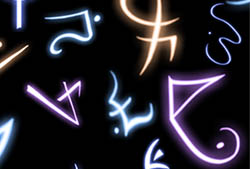
Arcane Runes Photoshop & GIMP Brushes

Posted in: Brushes | Tags: , , , , , .

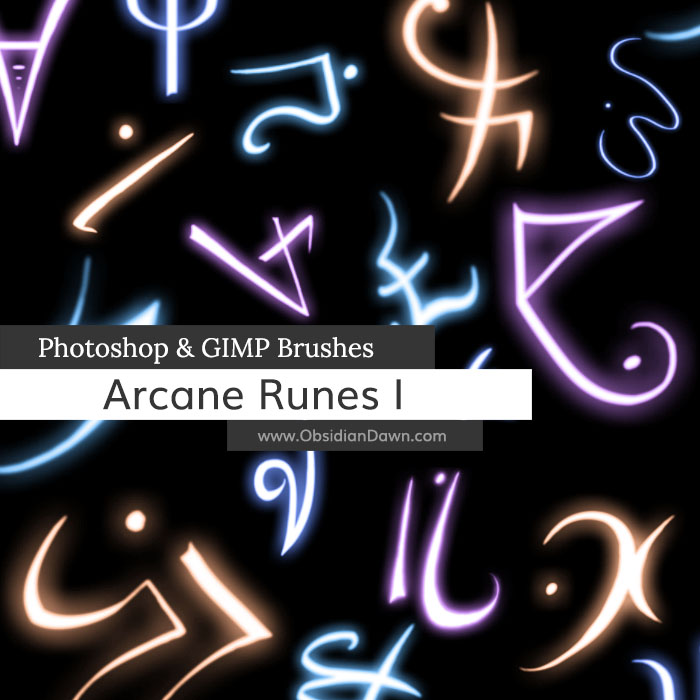
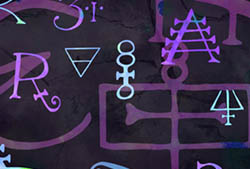
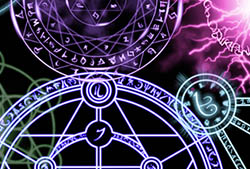
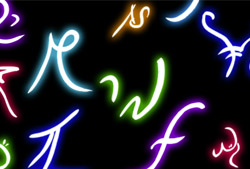
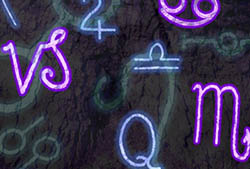
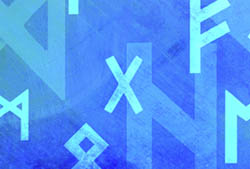
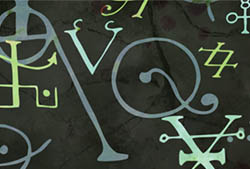
A set of Photoshop & GIMP brushes composed of various arcane or magic runes. These are all original designs, although some are based off runes and symbols from other sources (alchemy, mythology, etc.).

I’ve gotten numerous questions asking if these have any meaning. Since I made them up, I’m afraid they don’t… but that means that you can assign any meaning to them that you want!

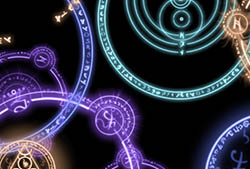
These are the runes used to make our popular Arcane Circles Photoshop & GIMP Brushes.

Tip: Apply an outer glow to these using a strong, bright color to make them look like they’re glowing like in my preview image!

Arcane Runes Brushes

Programs: Photoshop 7+, Photoshop Elements 2+, Gimp 2.2.6+
Brushes: 29
Size: 4.52MB

Arcane Runes Brushes
How to Install?
Terms of Use
 

Download the image pack (for those without Photoshop & GIMP)

55 Responses to Arcane Runes Photoshop & GIMP Brushes

  1. Krystal says:

    Those are GREAT A** PS brushes! A couple of the runes you made looks like Zodiac symbols, which I think is very cool. the one that looks like a Roman numeral 2 is actually the Gemini symbol. And the one that looks like a Y and a dot is close to the sign of the Capricorn.

    Keep up the great work! :)

  2. Stephanie says:

    Krystal: Yeah, a lot of them were based off real symbols, usually with a bit of a twist on my part. Glad you’re enjoying them! :)

    I actually have an astrology set, too, which has the actual zodiac symbols in it. It’s here: http://www.obsidiandawn.com/astrology-sketches-photoshop-gimp-brushes

  3. Sin Takai says:

    This be masterful, keep up the great work.

    #1 Fan ^^

  4. Ghosthunter says:

    Perfect, just want I need for a character of mine- which is for my personal use. I need symbols which will both form on him in Hell hound and human form.

    I must say, I’ve always enjoyed your brushes. Keep up the good work.
    GH

  5. FynaLuna says:

    Thank you very much.
    They are fantastic!!!

  6. I absolutely love these symbols! I was SO hoping that they meant something because I actually made a design for my next back tattoo using your awesome arcane runes symbols and it looked so sexy and cool!! I’ll have to design my own in a way to make them look like letters, then use them to spell my name and have it tattooed! Thanks for the inspiration, I’ve been thinking of what to get as my next tattoo, now I know!! Keep up the good work! (Btw I added you on DA)

    -Jenn

  7. cookie says:

    thanx again steph ^^

  8. Aireon says:

    I like your brushes. I will send u a link of what work i use them for.

  9. Geno Aqua says:

    Wow these are awsome!
    Also did you know that when you search arcane in google images this is the first thing to pop-up?

  10. Pingback: 12个免费的高质量梦幻笔刷下载| Resource| 前端观察

  11. Pingback: 12个免费的高质量梦幻笔刷下载 | 互联网的那点事...

  12. Sandy_in_MD says:

    Love this set – thank you!

  13. I cannot begin to express my gratitude for your kindness in sharing the brushes you make. All I can say is thank you.

  14. Brittany says:

    These brushes are lovely, as well as all the others.
    Thank you so much for sharing!
    I do need some help, though.

    Your tip says to add an outer glow to make them, well, glow.
    I am using Gimp 2.2.6; and I can only find Softglow.
    And that really doesn’t do too much.

    So how do I get a nice outer glow on Gimp?

  15. ohnna says:

    all are cute! nice!

  16. Celly says:

    Hey these were really cool!
    I love old signs and figures, these were great!
    Thankyou :)

  17. Allie says:

    Hey i am trying to get them to work with gimp 2.6 but it won’t work.. It says that the file type is unknown.. could you help me out a bit?

  18. Stephanie says:

    @Allie: Did you unzip them? Check to make sure you’re following the instructions in the tutorial that I’ve linked in my sidebar, under “Getting Started” – called “Installing Brushes”

    That’ll help you out, too!

  19. Allie says:

    Oh thanks! I never tried that!

  20. Pingback: 小亮博客 » Photoshop梦幻发光效果笔刷素材

  21. viva says:

    xcellent looking forward to some fun with these

  22. Luna says:

    Beautiful! But how do you apply an outer glow? I’m still pretty inexperienced here. I do have Photoshop though

  23. Stephanie says:

    @Luna: Put the brushes on their own layer, and then use a ‘layer style’ on that layer (click on the layer styles button at the bottom of the layers palette and choose “Outer Glow”). Check out some of my tutorials for details on how to apply layer styles, it’s easier to explain with pictures! :)

  24. Kathie says:

    Hey there, I downloaded the arcane brushesm and they are awesome!! :) I’m learning how to use them now :P

  25. Me says:

    This is the best thing I’ve seen in a while. Plus 1 Internets for you good sir.

Leave a Reply

Your email address will not be published. Required fields are marked *

*

You may use these HTML tags and attributes: <a href="" title=""> <abbr title=""> <acronym title=""> <b> <blockquote cite=""> <cite> <code> <del datetime=""> <em> <i> <q cite=""> <strike> <strong>