Jul 7 2007

Fireworks Photoshop & GIMP Brushes
Category: Brushes | Tags: , , ,

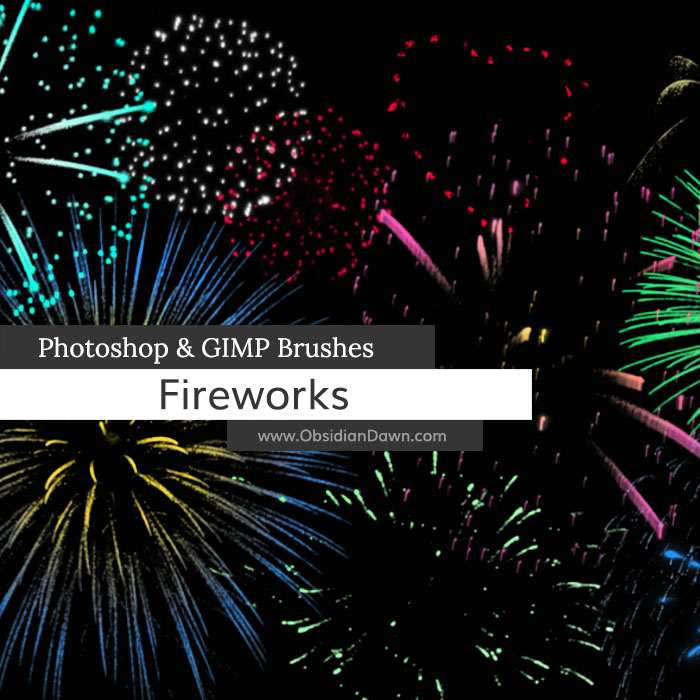
Celebrate with this set of Photoshop & GIMP brushes composed of various fireworks! They are all single bursts of some kind or another, and you can overlap them and put them together in various ways, or leave them on their own, for some realistic fireworks displays.

Fireworks Brushes

Includes the standard firework bursts, as well as some of the more recent shaped fireworks (circle, heart, star).

Programs: Photoshop 7+, Photoshop Elements 2+, Gimp 2.2.6+
Brushes: 30
Size: 2.36MB


>> Download the brushes
>> Download the image pack

Please read my terms of use before downloading!

A quick word on using these brushes. You can use them with a solid color, yes. They’ll look great. But, to help make them even more colorful and/or realistic, apply a radial gradient to the layer!

If you want them to still just be the one color, you can still use a radial gradient to help make them look more realistic. Some fireworks are brighter in the center, and some are brighter on the edges. So, apply a radial gradient with just the basic black/white, and set the blending mode to “screen.” I also set the opacity to around 50% or so, so that it wasn’t TOO bright. Depending on whether your white is on the outer part or the center part of the firework, it’s going to look entirely different. If you want to switch them, click the checkmark next to Reverse. Play around with it and see what you can come up with!

You may even want to apply an outer glow to some of them, to make them even more luminescent. Some will look great like this, some you may not notice a difference at all, so you’ll have to see. I only tried it with a few of the brushes.

16 Responses to “Fireworks Photoshop & GIMP Brushes”

  1. Akemi

    Hello!

    How to I add a glow/gradient to it?

    (I new to Photoshop.)

    Thanks!

    Akemi.

  2. @Akemi: You’ll have to use the brush on its own layer (click on “Create a New Layer” on the lower right area of the layers palette), and then apply a layer style (just to the left of where you created the new layer, on the layers palette). The rest of the instructions from this post should be understandable now that you know where to look! Good luck! :)

  3. Sandy_in_MD

    Thank you!

  4. Jackie

    These are great, thank you so much.

  5. Yanti

    Thank you sooo much for all your brushes. They are great!

  6. JoyceB

    Just what I was needing for my 4th of July pics…..thank you, Stephanie!

  7. mamboze

    Thanks for supporting GIMP too. Much appreciated by this Ubuntu user.

  8. sam

    Hi

    Thanks for the brushes they r great but i m new to photoshop Can you please tell know how you can make fireworks in different colours mine r working just grey and while colour:(

  9. @Sam: You’ll want to use the brushes on their own, new layer. Then apply a layer style to that layer, something like a gradient or somesuch. That’s what I did for the ones in the preview.

    If you’re not sure what this means, check out some of my tutorials. Even if they don’t teach you to do exactly what you’re wanting, you’ll learn all the basic principles of making a layer and adding a layer style in them.

    Hope this helps!

  10. Mary

    Thank you so much for these!

  11. Jake

    Stephanie, How did you get your brushes to be two different colors? I mean i don’t quite understand how you did that. I see that you said have a gradient on a seperate layer, and colors on different layers too. But i don’t understand :(

  12. @Jake: For these brushes, I put each firework on its own layer and then added a radial gradient to that layer. That’s it.

    But I also have a tutorial on other ways of doing multiple colors with brushes… it’s called exactly that, and it’s in my tutorials :)

  13. lia

    How can I install the brushes to Adobe Fireworks?? Where should I put them in the Adobe files?? Please help! ^^

  14. @lia: These weren’t made for Adobe Fireworks, they were made for Photoshop. I know nothing at all about Fireworks, and have no idea if they’ll work. Sorry!

    There is also an “image pack”, though, which you can download – it’s made up of the JPGs I used to make the brushes, and would work in any graphics program.

    Stephanie

  15. lia

    Oh, I see!! Thank you very much for your reply! I’ll take them for Photoshop. :)

Leave a Reply

See Your Image here - Submit Now!
Obsidian Dawn on Facebook