
Nov 15 2008

Glitter II Photoshop & GIMP Brushes

Category: Brushes | Tags: , , , , ,

Quick note about Obsidian Dawn’s RSS feed. I apparently failed to change an obscure setting at Feedburner and those of you that subscribed to RSS since the redesign may not be getting updates. My apologies for that! It should be working fine now. Not sure why I seem to have been cursed when it comes to the RSS and the redesign, but I suppose I should be thankful that the rest turned out fairly well!

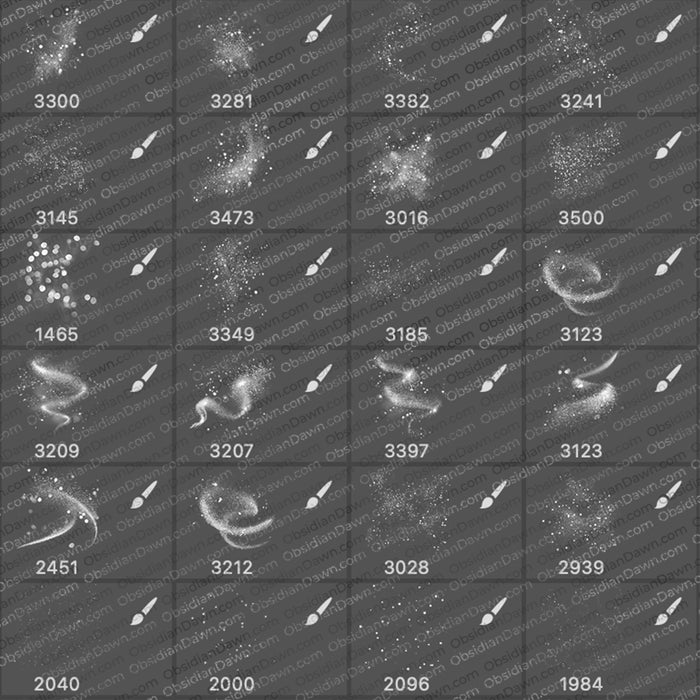
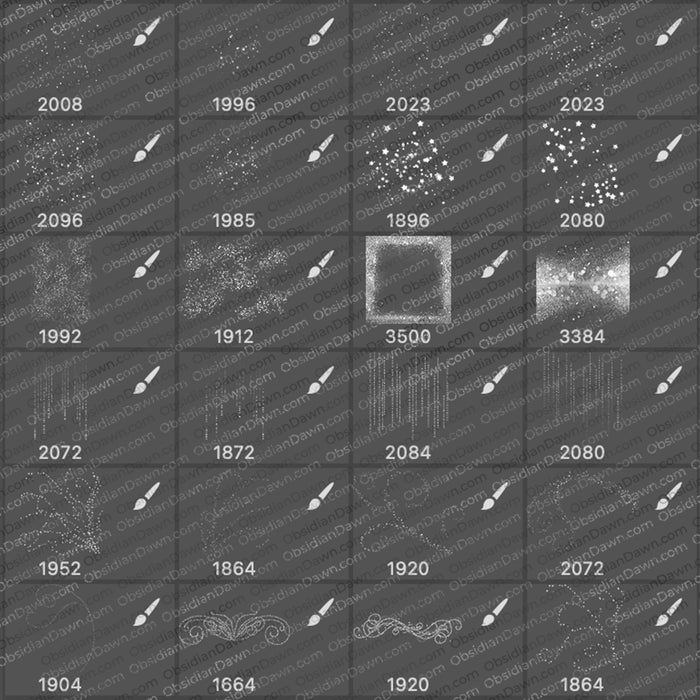
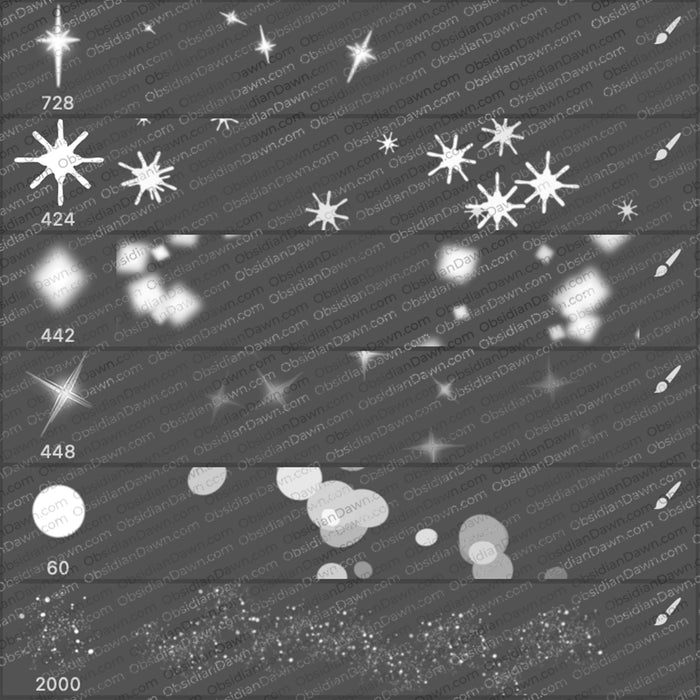
A set of Photoshop & GIMP brushes composed of various glitter and sparkles designs. These are all high resolution, with the average size being about 1500 pixels.

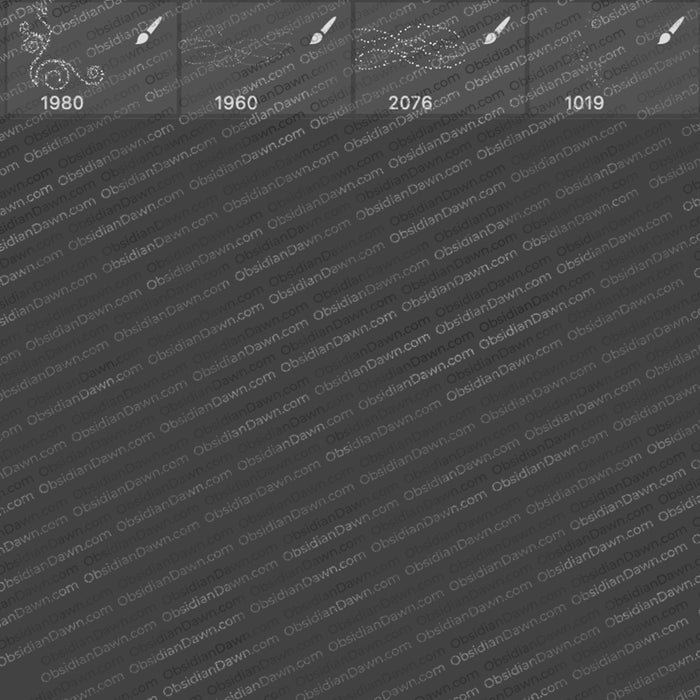
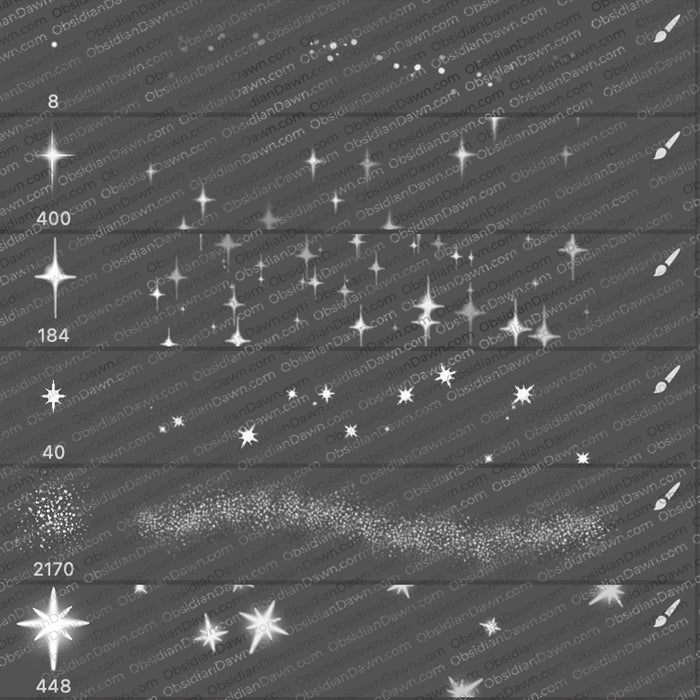
This set includes “curtains” of glitter, lines and wavy lines of sparkles, various clusters of glitter and sparkles, glittery textures, several beautiful glittery swirls, a few individual glittery shapes, glitter “shooting out” from one source, and several glitter and sparkle scatter brushes (the kind that will allow YOU to paint your own glitter!), and much more!

Glitter II Brushes

Be sure you also check out our original Glitter Photoshop & GIMP Brushes!

Programs: Photoshop 7+, Photoshop Elements 2+, Gimp 2.2.6+
Brushes: 38
Size: 8.73MB

>> Download the brushes
>> Download the image pack

Please read my terms of use before downloading!

Brushes Tip:

Please feel free to play around with the brush settings on the scatter brushes to get the effect that you want. As long as you don’t re-save the brush and then the brush set, it won’t mess up the original brushes.

Also, even though only the “scatter” brushes are made to scatter, you could make the glitter clusters (or any of these brushes) scatter about to create some more heavily glittered designs and scatterings of glitter even faster.

Hit F5 to bring up the brushes tab.

Here’s some settings to play with:

Under Brush Tip Shape
Spacing: This will make the glitters closer together or farther apart

Under Shape Dynamics
Size Jitter: This will make the size of the glitter vary more or less
Minimum Diameter: This will dictate the minimum size that the glitter will be (as its varying in size)
Angle Jitter: This changes the angle of the sparkles more or less

Under Scattering
Scatter: This makes the sparkles scatter about more or stay more along the path that you’re painting

Under Other Dynamics
Opacity Jitter: This makes the sparkles vary in opacity as they are painted - more or less

53 Responses to “Glitter II Photoshop & GIMP Brushes”

  1. Roberto

    Thanks Stephanie you still the greatest, Lord bless you always
    I have been looking around for more sparklies brushes I although some of them are ok, none compare to yours, again, thanks a lot!

  2. Stephanie you ROCK!!! These are gorgeous! Thanks :)

    Love your new site!!

  3. Thank you very much for sharing these brushes.

  4. Thank you!! These look gorgeous and look forward to using them!! Appreciate greatly your sharing!

  5. Skyguy

    Many, many thanks Stephanie for all your brushes and images which I have been downloading for some time. They’re brilliant and have helped me enormously…

  6. Stephanie, love your work. thank you

  7. TAS

    As always, thank you for sharing your excellent work. The glitter brushes are lovely and will look great in my layouts.

  8. dg

    Thank you for your wonderful brushes, you are brilliant! I’ve always wanted to thank you for these wonderful brushes!

  9. Thank you so much, these are fabulous!

  10. Linda

    I love your site. Thanks so much for all you do.

  11. Robyn

    Thank you Stephanie for more of your fabulous brushes.

  12. Michelle

    Thank you so much! Beautiful!!

  13. Love your brushes! Thank you.

  14. Joey

    Aw yeah! Loved the first glitter brushes. A second set is just icing on the cake. You are AWESOME, Stephanie! Thanks so much for sharing.

  15. shine.ravindra

    Simply awesome! Thanks for sharing…keep up the good work

  16. Thanks so much no words to express good luck…

  17. I had you credited via button on my website but it seems you have removed the buttons since you redid the page. I really hope you plan on adding them back in. In the meantime I guess I will make an old fashioned link.

  18. Kerin: I still have buttons, they’re just harder to find. Click on links in the bottom menu, and then “our banners, found here.” at the end of that page. I have all new banners, because the old ones said brushes.obsidiandawn.com :)

    Anyway, here’s a direct link for ya! http://www.obsidiandawn.com/link-to-us

    Glad that you all are liking these!

  19. Hi! Just wanna thank u for some awesome stuff;) So… Thanx=)

  20. So beautiful…thank you SO much!!!

  21. Amber

    Wow ! Tose brushes are amazing Ö
    But.. How do I install them on GIMP 2?

  22. Amber: Not a clue, sorry. Do a Google search, and you’ll find about a billion tutorials, though. :)

    I don’t use GIMP, myself - these brushes were made in Photoshop 7, but they WILL work in GIMP 2.2.6 and above.

  23. Varunsivaraj

    Thank you sir i like your BRUSHES veryyyyyyyy much…………..

  24. Emerald789

    Thank you very much for sharing your brushes! i really love them ^_^

  25. hi i cant set brushes photoshop. how set it help me thanks

  26. Follow the link in the sidebar on “Installing Brushes” and it explains it all for you.

    Or here: http://www.obsidiandawn.com/installing-photoshop-brushes-tutorial

  27. Khandie Ferrarez

    Fabulous! You keep coming up with the best PS brushes!

  28. Hedda

    Lovely brushes - thank you for being so generous!

  29. Suresh

    thankssssssssss you very much……

  30. Evelyn

    Beautiful brushes can’t wait to play with them :] TY XXX

  31. Frank

    Special thanks for cool brushes

  32. thank you so much for the awesome brushes
    cant wait to play with them

  33. thanks, nice Brushes, i play with this all brushes.

  34. Linda

    Thank you for sharing your brushes. I can’t wait to play around with them.

  35. thank’s very much

  36. Sakruaa

    whats the differance between the brushes and the image pack?

  37. @Sakruaa: You can read all of my FAQs here, where it explains all that: http://www.obsidiandawn.com/frequently-asked-questions

    But basically, brushes are made up of an ABR file, which can be used in Photoshop or GIMP to create the shapes. Image packs are just made up of JPGs.

  38. Marianne

    Thank you for the wonderfull brushes:)

  39. Marianne

    Thankyou:)

  40. Thank you so much for the lovely brushes.

  41. RockerJyl

    I Love You so much….. thanks for creating these brushes…

  42. sugaryang

    thanks soo much for sharing…. i love it…

  43. kavitha

    good work for sharing your designs

  44. hi,
    how can I use these brushes???

  45. Brechje: Check out my sidebar items on Installing Brushes, etc. That will help! Also, check out the tutorials section for some advanced help with brushes, too.

    Enjoy!

  46. mm riyas

    dear friend,

    thanks for ur good mind to share ur creations with us…may god bless you

  47. mm riyas

    dear friend,

    thanks for ur good mind to share ur creations with us…may god bless you

  48. Crystal McPhail

    Stupid question but where do you put the image pack for the brushes…

  49. @Crystal: This question is answered in my FAQ. The image pack is ONLY for people that can’t use the brushes. If you can use the brushes, then just download those. The image pack is just made up of the JPGs that the brushes are made up of.

    Hope this helps! :)

  50. Sandy_in_MD

    Very pretty - thank you!

  51. Anna

    Thank you to pieces for this beautiful, useful freebie! Love it :)

Leave a Reply

Member Center

By Program

Follow Us

  • Fb   Fr   Te   Tw   BC
See Your Image here - Submit Now!