Trees Photoshop & GIMP Brushes
Posted in: Brushes | Tags: , , , .

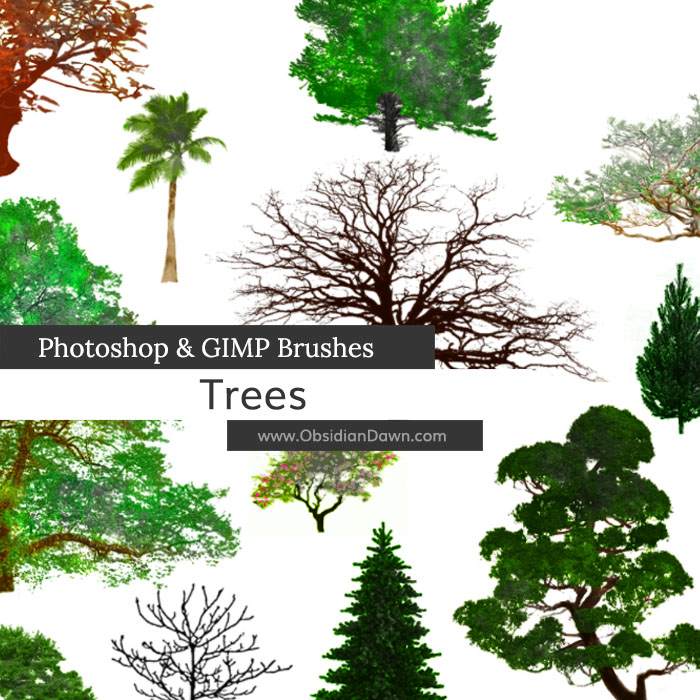
A set of Photoshop & GIMP brushes composed of various trees.

Includes: bonsai, a palm, numerous dead or leafless trees, tons of “leafy” trees, several pines, a few oriental trees, and a willow

Trees Brushes

Programs: Photoshop 7+, Photoshop Elements 2+, Gimp 2.2.6+
Brushes: 26
Size: 6.20MB

Trees Brushes
How to Install?
Terms of Use
 

Download the image pack (for those without Photoshop & GIMP)

48 Responses to Trees Photoshop & GIMP Brushes

  1. Faye says:

    Love the trees. Thank you very much.

  2. Kine says:

    very nice : ) but how do I get more than one color on the trees ? : )

  3. Stephanie says:

    @Kine: I have a tutorial that explains how to do all of that here: http://www.obsidiandawn.com/using-multiple-colors-with-photoshop-brushes-tutorial

    Good luck!

  4. maureen D says:

    another great set of brushes. thank you

  5. ? says:

    Does it work for GIMP 2.6.3???

  6. Stephanie says:

    @?: It works in every version of GIMP beyond 2.2.6, so if there’s a 2.6.3 out, then yep!

  7. Bridgette says:

    Thank you! It will work greatly for animating :D

  8. Dasha says:

    Thank you so mush!!! Threes brushes – Thats what I am really need!!

  9. Emily says:

    THANKS!! Cool brushes as always!

  10. Sandy_in_MD says:

    Nice set – thank you!

  11. celeste says:

    thanks again

  12. Jackie says:

    Very very VERY nice!

    But using Gimp, how can I get more than one color on a tree?

  13. Nate says:

    Thanks so much!!

  14. anita says:

    Thanks so much for these brushes. I am in the process of setting up a website and will make sure you’ll be mentioned

  15. amerianna says:

    do you have a tutorial on how to make trees i am going to college for Visual Communication, and our first lesson on CS3 was to make a tree.. i want to learn how to make a tree look realistic.. do you have a tut on that.

    amerianna

  16. Stephanie says:

    @amerianna: Afraid not, sorry! If you’re wanting to use Photoshop brushes and not real images, you could check out my tutorial on making photoshop brushes non-transparent. That’s the one you’d want for this. It’s in my tutorials section, called “Removing Transparency”

    Or you could just use images. :)

  17. Sandy says:

    I have downloaded a lot tonight and I am sorry. I just really love your work. Your brushes are fantastic. I promise to give back in any way I can. Just let me know. Thanks:-)

  18. renee90 says:

    Hi I’m just wondering what’s the difference in downloading the pictures and the brushes?
    I usually just download the brushes but now I’m curious :) Thanks!!

  19. sa says:

    I like the brushes Thanks

  20. Dee says:

    Thank you so much..
    this is really cool

  21. Mike says:

    Hey! I’m trying to use the brushes for GIMP and like Jackie, I don’t know how to use different colors for them. Tutorial please!

  22. Stephanie says:

    @Mike: Perhaps I’m not understanding your question. Brushes are made to be used in whatever color you have selected. But it’s a single color only. If you want to add colors to them, like green leaves and a brown trunk to these trees for example, which must be what you’re asking… I DO have a tutorial for it. However, it’s in Photoshop.

    I am not a GIMP user and have no plans on learning the program. I’d much rather create more resources for people to use than learn the program just so I can answer a question here or there (the majority of my users still use Photoshop).

    HOWEVER, if you’re a decent GIMP user, and are familiar with the program… then you can easily read my instructions in that tutorial and “translate” them into GIMP instructions. GIMP was modeled after Photoshop for the most part, so the procedures shouldn’t be very different. (example: when I tell you to make a new layer, then go on to explain how to do it in PS, as long as you know how to make a layer in GIMP, then you’re good to go – at least for that step) :)

    Sorry I couldn’t help more, but you can find the Photoshop tutorial under my tutorials section (top menu), called “Multiple Colors with Brushes”.

    Good luck!

  23. robbie says:

    How do I save these brushes. I have downloaded them, then extracted them and loaded them, then when I switch to another brush and then try to find them again they are gone.

  24. Stephanie says:

    @robbie: Check out my tutorial on installing and using brushes, in my sidebar – “Installing Brushes”. That’ll show you where to put them so they’ll always be there, etc. :)

Leave a Reply

Your email address will not be published. Required fields are marked *

*

You may use these HTML tags and attributes: <a href="" title=""> <abbr title=""> <acronym title=""> <b> <blockquote cite=""> <cite> <code> <del datetime=""> <em> <i> <q cite=""> <strike> <strong>