
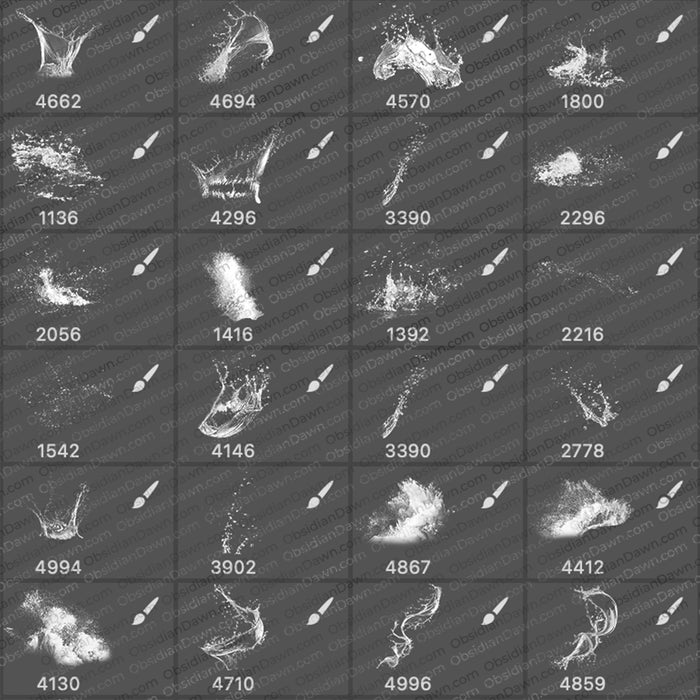
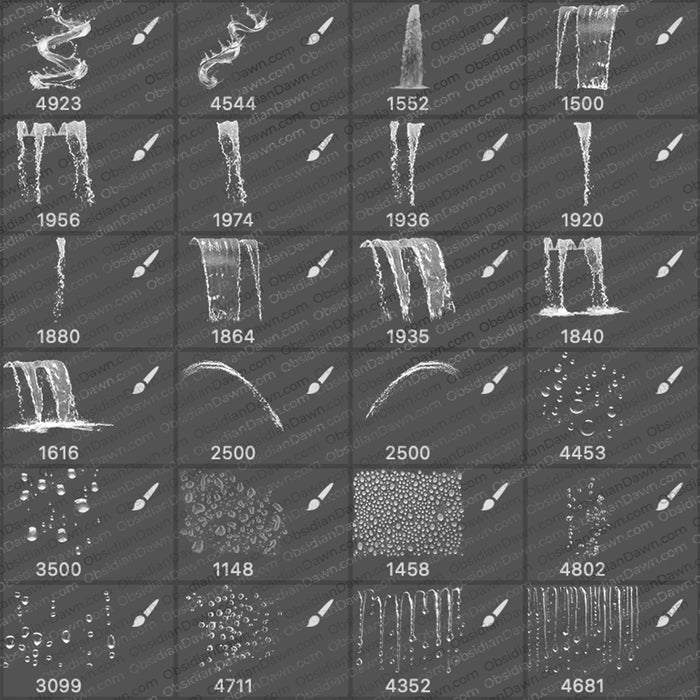
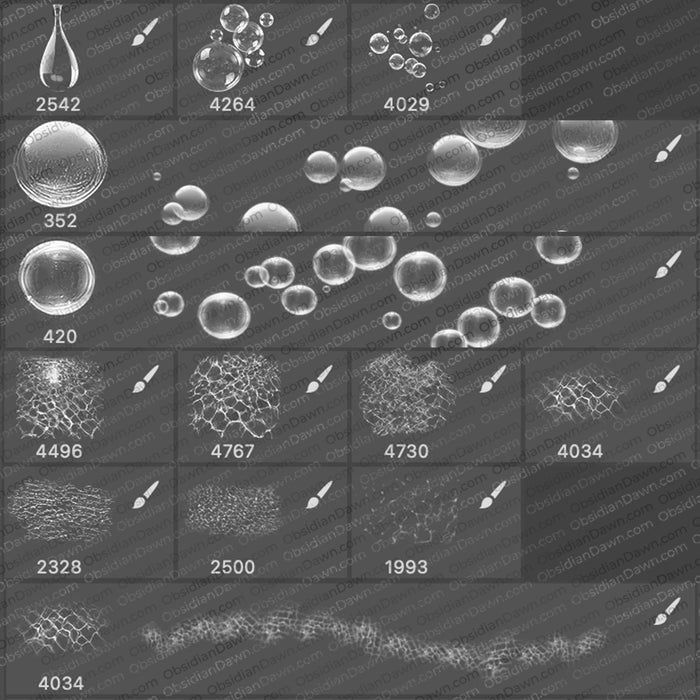
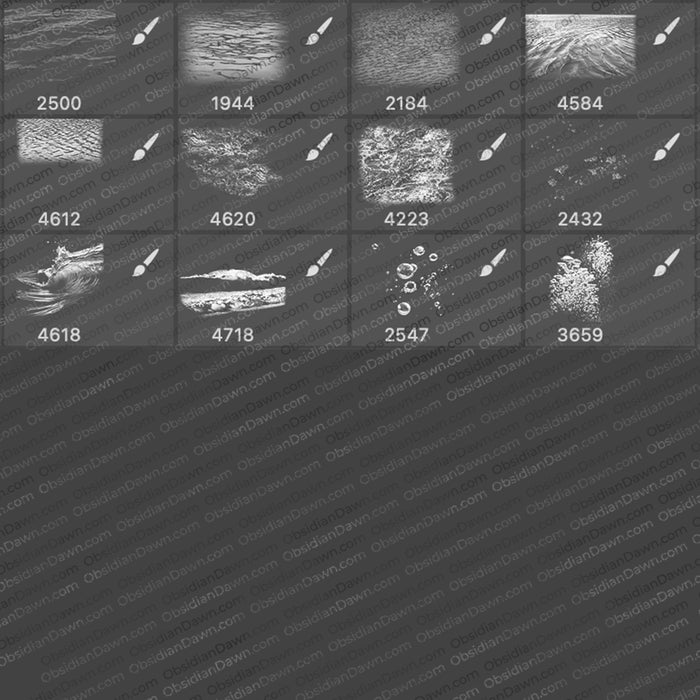
A set of Photoshop & GIMP brushes composed of various various water shapes. These are all very high resolution, with the average size being about 2000 pixels.

Be sure to also check out our original Water Photoshop & GIMP Brush set.
Programs: Photoshop 7+, Photoshop Elements 2+, Gimp 2.2.6+
Brushes: 30
Size: 19.3MB
Download the image pack (for those without Photoshop & GIMP)
Random Brushes Tip:
Ever tried to paint with a brush and thought that the edges didn’t seem as clean and smooth as they could be? The way that the hard-edged brushes in Photoshop’s “Basic Brushes” are set, that just may happen when you’re working at higher resolutions.
So, how do you fix that?
- Click on your brushes tab (or hit F5 to bring it up).
- Click on “Brush Tip Shape” and look at the preview image of the brush at the bottom. You’ll be able to see those bumpy edges if you set the diameter at a high size.
- Now change the “Spacing” so that it’s set to about 15% or lower. You can set it to 1% to make it perfectly smooth for those ultra-high resolutions, but if you have a slower computer, that may slow the brush down when you go to use it. So just find a nice percentage where you don’t see all the bumpy edges.
That’s it! I don’t expect many of you to need this tip, but I remember back when I was first learning to paint digitally in Photoshop, and I couldn’t figure out why the edges were coming out so bumpy sometimes. So I thought I’d share!


Hello!
Does the Water ll Brushes work on the Mac OS 10.6 (Snow Leopard) platform?
Thanks!
Forgot to mention, I’m running Photoshop CS4.
you run photoshop cs4? do you know where i can purhcuse it? i cant find it anywhere
You will likely have to purchase CS4 through sites like Ebay, etc. at this point. CS5 is the current version, and Apple only sells the current version (to my knowledge) on their website, at least. Make sure it says that it has a valid product registration key! An unused one.
Good luck!
@Merrill: The version of Photoshop is all that matters, and as you’ll see on this page, it says Photoshop 7+. That includes ALL of the CS series, so you’re good to go! :)
Pingback: How to Create a Stunning Winged Vixen | MadTuts
Great work. Thanks for sharing.
Thank You, I’m very excited to use these
I have Gimp and i downloaded the brushes .How do i add it to the Gimp Graphic Program ?
thanks for sharing.
>.> how do i install them on gimp
Click on “Installing Brushes” in my sidebar. :)
can i used your brushes for contest in “Skin the Bottle” Competition ?
the skin could appear on water bottles sold in stores.the contest end in 30th november
You can, sure. However, if you win, you’d have to purchase a commercial license for whichever brush sets you used, since you couldn’t exactly credit me on the bottles. If the entries will be displayed on a website somewhere (even the ones that don’t win), you may as well purchase a license for it now – because I doubt you’ll be able to credit me on that website alongside their usage. Hope this clears it up for you!
thanks for the reply,i must purchased commercial licence if i use it.
im using the eyelash brushes and i tried to use it an it comes out blurry as if the opacity was set low (Set: opacity:100 Flow:100) and it doesnt show the lashes they look blurry grey.I dont know what to do an would like to use it properly on photos. Help?
Your best bet, if it’s not coming out very strongly, is to either just double click on the screen twice – to use the brush on top of itself and make it darker… or, to use the brush on its own layer and just duplicate that layer until it’s as dark as you’d like it. I’m not sure which brush you’re using, but some of those are definitely darker than others, as well. However, if you like the brush you’re using and just want it darker, what I said above should work out perfectly.
i am trying to download this brushes but its seems hard it shows This XML file does not appear to have any style information associated with it. The document tree is shown below.
AccessDeniedAccess Denied
1C021DAA9D0EF5A1
e2XlP9c0ddRC+H3RRGzvSZdcy2mDKvfJPB8dOa9qWUdjojQBlhSZ1wJyVEfCTJOZ
i f you now something to help me please notice me
I was editing some stuff last night, and missed this one. All fixed now! Thanks for the heads up!
thanks now i can download without problems and i just did it
Thanks I was looking for brushes like these
When I go to use the brushes, they`re really really big.
How do I change the size of them?
thanks.
There’s a slider up next to the thumbnail that shows the currently selected brush. You can use that to choose the size.
If you want to see a video that shows it, check out my “Realistic Eyelashes and Eyeshadow” tutorial, which shows me resizing a brush.
Pingback: Tạo bức hình cá mập sống động với Photoshop